
Social & Leaderboard
Social mode turns a stream into a collaborative team experience. Instead of individual play, every participant contributes to a shared team score — perfect for live events, team-building activities, trade shows, and community engagement campaigns.
How Social Mode Works
Section titled “How Social Mode Works”When social mode is active on a stream:
- Every player’s score is added to a team total for that stream
- A real-time scoreboard shows team progress, participant count, time remaining, and milestone achievements
- Players see the collective score update as others play simultaneously
- Reaching a score milestone triggers an unlock popup with an optional prize image and redemption code (rendered as a QR code on the scoreboard)
Setting Up the Scoreboard
Section titled “Setting Up the Scoreboard”The scoreboard is configured per stream from the Streams page.
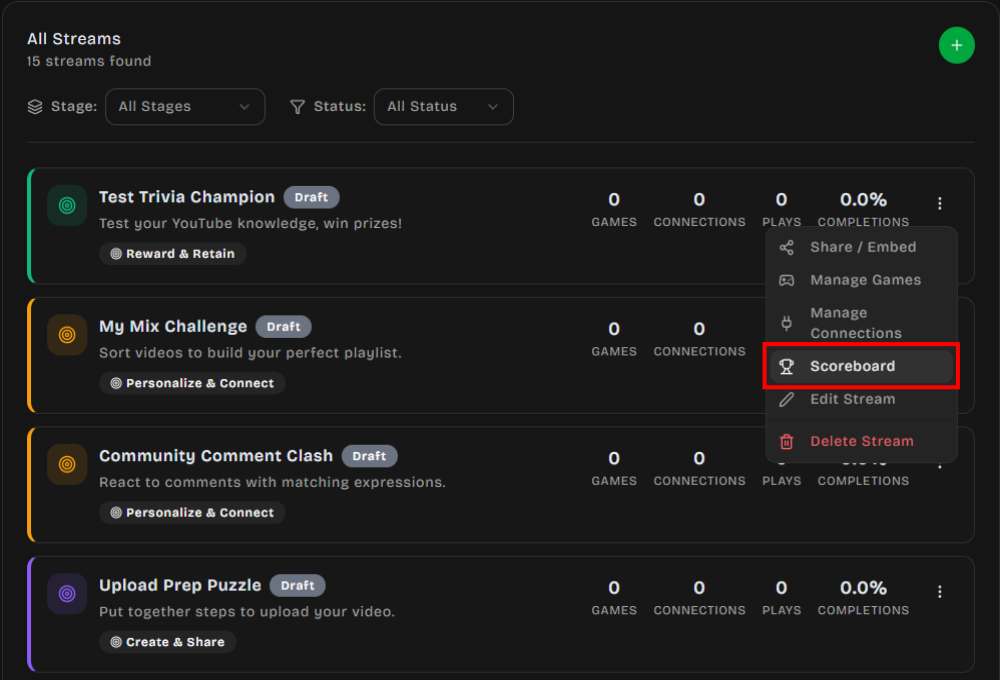
- Go to Streams and locate the stream you want to run in team mode
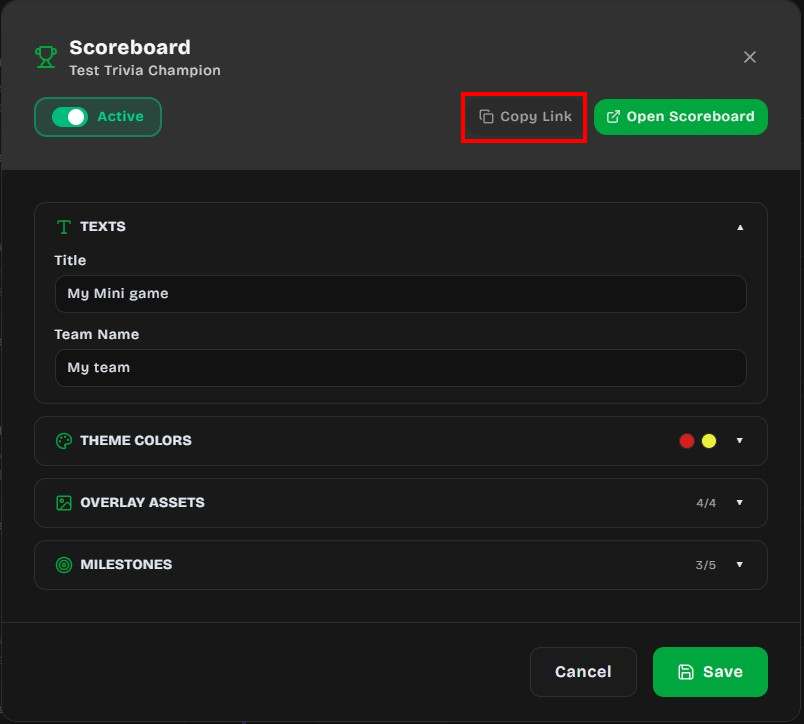
- Open the stream’s actions menu and choose Scoreboard
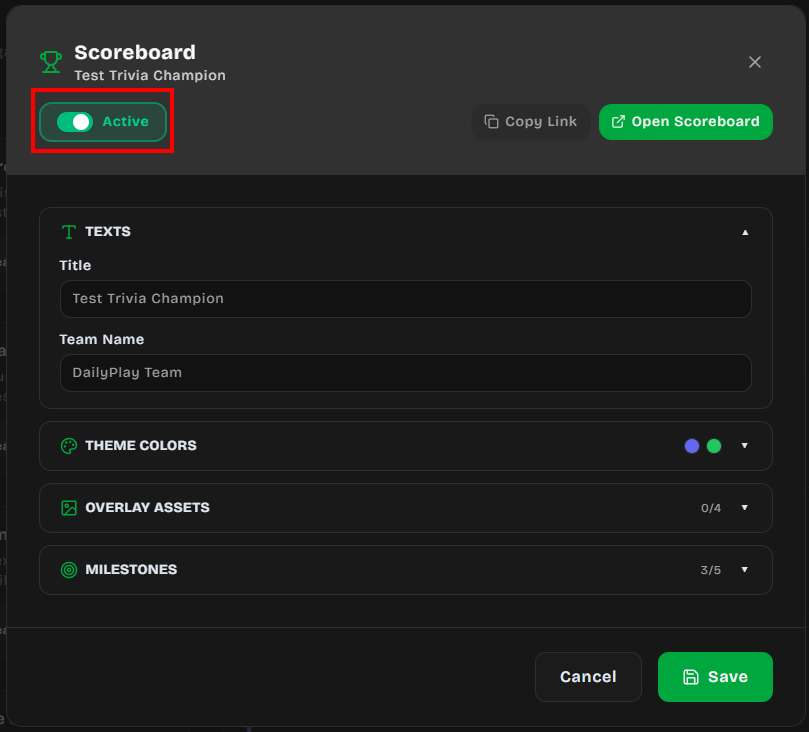
- In the Scoreboard configuration modal, toggle the switch to Active — this enables social mode on the stream
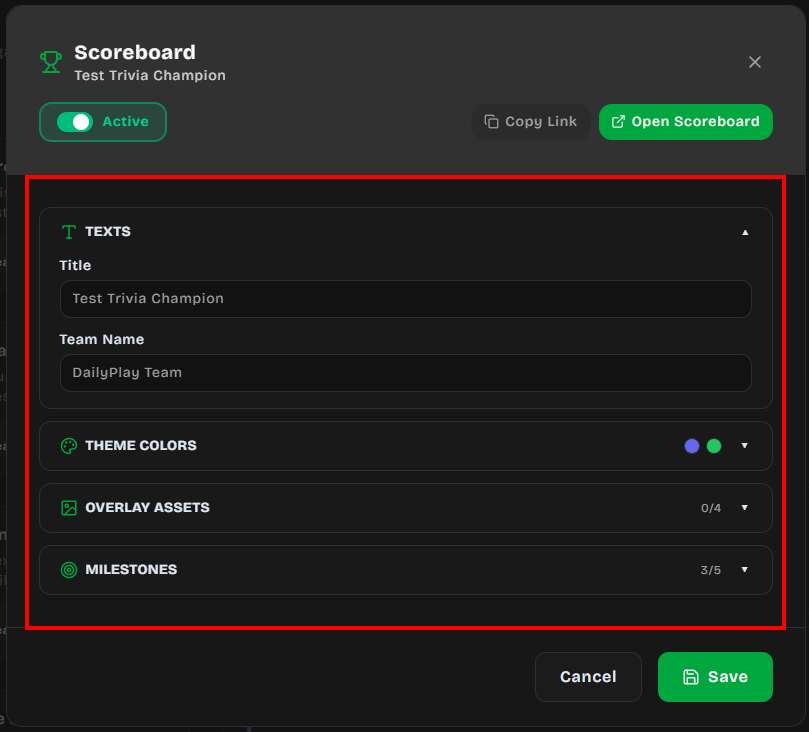
- Configure the sections described below
- Click Save when you’re done
The modal also exposes two shortcuts:
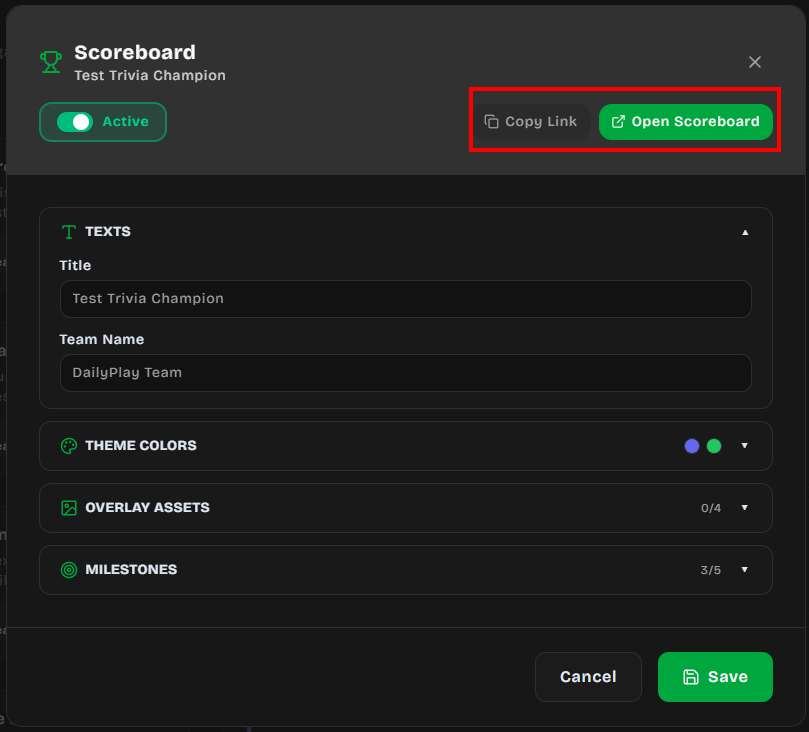
- Copy Link — copies the public scoreboard URL to your clipboard
- Open Scoreboard — opens the fullscreen scoreboard in a new tab (only available when the scoreboard is Active)
1. Texts
Section titled “1. Texts”- Title — displayed at the top of the scoreboard overlay (e.g. your event name)
- Team Name — shown on the score card below the team logo
- Scan to Play title / description (optional) — custom copy for the fullscreen “Scan to Play” QR panel; leave blank to use the defaults
- Collect Player Name — when enabled, players can enter a name for social highscores after a game. Default is off.
2. Theme Colors
Section titled “2. Theme Colors”- Primary Color — used for the replay button and progress bar
- Secondary Color — used for the score glow and submit button
3. Overlay Assets
Section titled “3. Overlay Assets”Upload, generate with AI, or pick from your gallery the four visual layers used by the scoreboard overlay:
- Landscape Background (1920×1080) — shown when the scoreboard runs in landscape orientation
- Portrait Background (450×800) — shown when the scoreboard runs in portrait orientation
- Team Frame (1024×1024) — decorative frame around the score panel
- Team Logo (256×256, transparent PNG) — your team logo or badge
4. Milestones
Section titled “4. Milestones”Add up to 5 milestones that the team unlocks as their combined score grows. For each milestone:
- Prize Name — the label shown when the milestone is reached
- Milestone Score — the team score required to unlock it (must be higher than the previous milestone, otherwise saving is blocked)
- Redemption Code (optional) — a code players can use to claim the prize; rendered as a QR code on the scoreboard
- Prize Image (optional) — an image displayed in the unlock popup
When the team crosses a milestone score, the scoreboard plays a confetti burst and shows the unlock popup with the prize image and QR code.
5. Display Sections
Section titled “5. Display Sections”Use Display Sections to choose which panels appear on the live fullscreen scoreboard. All sections are on by default.
| Toggle | What it shows |
|---|---|
| Score | Team total score |
| Players | Participant count |
| Time Left | Countdown until the stream ends |
| Score Progress | Milestone progress bar |
| Top 10 Highscores | Individual top scores for the stream |
How rotation works
Section titled “How rotation works”- The team Score panel stays visible when enabled
- Time Left, Players, and Score Progress share space and rotate in pairs (up to two at a time)
- Top 10 Highscores always gets its own slide so the list has room to display
- When more than one slide is needed, the scoreboard auto-rotates about every 6 seconds
Turn off sections you do not need for a cleaner projection — for example, hide Time Left for an open-ended event, or hide Top 10 Highscores when you only want the team total.
Time Left / Countdown Timer
Section titled “Time Left / Countdown Timer”The scoreboard displays a live countdown timer that shows how much time remains before the stream ends. This is driven by the stream’s Start Date, End Date, and Timezone settings — no extra configuration is needed inside the scoreboard modal.
How to Set It Up
Section titled “How to Set It Up”- When creating or editing a stream, scroll to the Schedule section
- Set the Start Date and End Date for when you want the event to finish
- Select the correct Timezone for your event location
The timer starts counting down automatically on the scoreboard once the stream is active.
How the Timer Displays
Section titled “How the Timer Displays”The countdown format adapts based on how much time remains:
| Time remaining | Display format | Example |
|---|---|---|
| Under 1 minute | 00:SS |
00:42 |
| Under 1 hour | MM:SS |
12:35 |
| Under 24 hours | HH:MM:SS |
03:45:12 |
| Under 30 days | Xd XXh |
2d 14h |
| 30 days+ | Xmo Xd |
1mo 5d |
Below the timer, a contextual label appears based on the stream’s timezone:
- Ending soon — less than 60 seconds remaining
- Ends this morning / afternoon / evening / tonight — ends within the current day
- Ends May 30 — ends on a future date
- Ended — the stream end time has passed
Fullscreen Leaderboard Display
Section titled “Fullscreen Leaderboard Display”The public scoreboard page is designed to be projected at live events. Once social mode is active, its URL is:
https://app.dailyplay.ai/stream/{orgSlug}/{streamSlug}/scoreboardYou can also grab this link from the Copy Link button in the Scoreboard modal.
Leaderboard Features
Section titled “Leaderboard Features”- Configurable display sections — show or hide Score, Players, Time Left, Score Progress, and Top 10 Highscores; enabled secondary panels rotate automatically (see Display Sections)
- Auto-rotates between portrait and landscape layouts based on the display orientation
- Animated score increases (fullscreen only) — when the team score jumps, floating “+X”
indicators rise from the score with tiered effects. This animation only appears on the
fullscreen scoreboard display, not on the player’s end-of-game screen.
- Small increases: green text
- Medium increases: blue text with glow
- Large increases: yellow text with enhanced glow and larger size
- Milestone progress bar — shows the next milestone and celebrates each one when reached. Unreached milestones display the prize name as “?” to keep the reward hidden until the team score crosses the threshold. Once unlocked, the actual prize name is revealed.
- QR codes — there are two distinct QR code experiences:
- Fullscreen scoreboard — displays a single “Scan to Play” QR code (in landscape mode) that encodes the stream URL, allowing spectators to join the game from their phone. It does not show individual milestone redemption codes.
- Player stream page — after completing a game, players who have unlocked milestones see a Redeem button. Tapping it opens an overlay with a QR code for each unlocked milestone’s redemption code, along with the prize name, prize image, and a tap-to-copy code badge.
- Real-time polling — the scoreboard refreshes every 10 seconds, no manual reload needed
Display Tips
Section titled “Display Tips”- Open the scoreboard URL on a large screen or projector at your event
- Press F11 for true browser fullscreen (no UI chrome)
- For landscape projection on a phone or tablet, opening fullscreen will also attempt to lock the device to landscape orientation
- Keep the player game URL on a separate device (or share it via QR code) so the scoreboard display stays clean
Use Cases
Section titled “Use Cases”- Conference engagement — attendees play games on their phones, the team score displays on stage
- Retail events — in-store customers contribute to a collective goal that unlocks a prize for everyone
- Team building — departments compete by assigning different streams to different teams
- Product launches — unlock reveal content when the community reaches a score milestone