
Gallery
The Gallery is your organization’s central image library. It stores all images that have been uploaded manually or generated with AI, making them easy to find and reuse across your games, prizes, and branding.
Accessing the Gallery
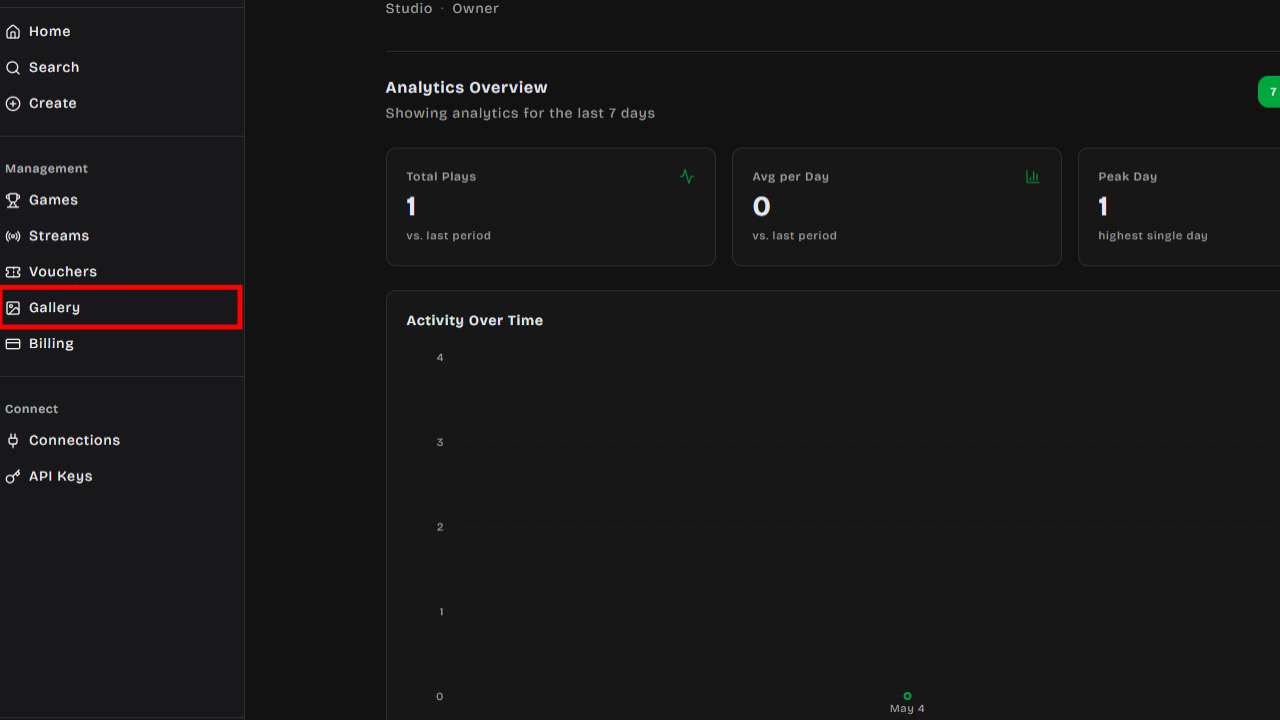
Section titled “Accessing the Gallery”Click Gallery in the left sidebar under your organization’s management section. You need Editor role or higher to access the gallery.
Features
Section titled “Features”Image Grid
Section titled “Image Grid”The gallery displays all your images in a responsive grid. You can browse thumbnails and click any image to see a full preview with details such as:
- Original file name
- Dimensions (width × height)
- File size
- Source (uploaded or AI-generated)
- Upload date
Search
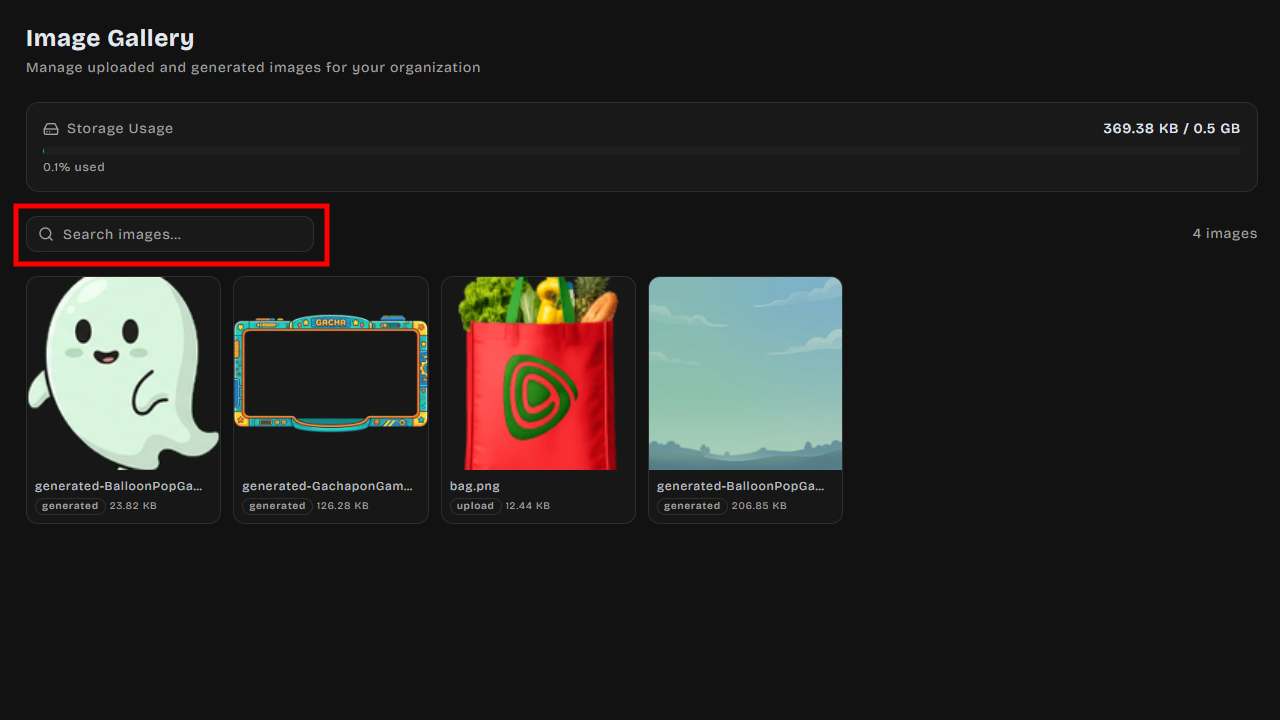
Section titled “Search”Use the search bar at the top to filter images by name, filename, or source type. Results update in real time as you type.
Storage Usage
Section titled “Storage Usage”A storage bar at the top of the gallery shows how much space your organization has used relative to your plan’s limit. The bar changes color as you approach capacity:
- Green — Plenty of storage remaining
- Yellow — Over 80% used
- Red — Storage full
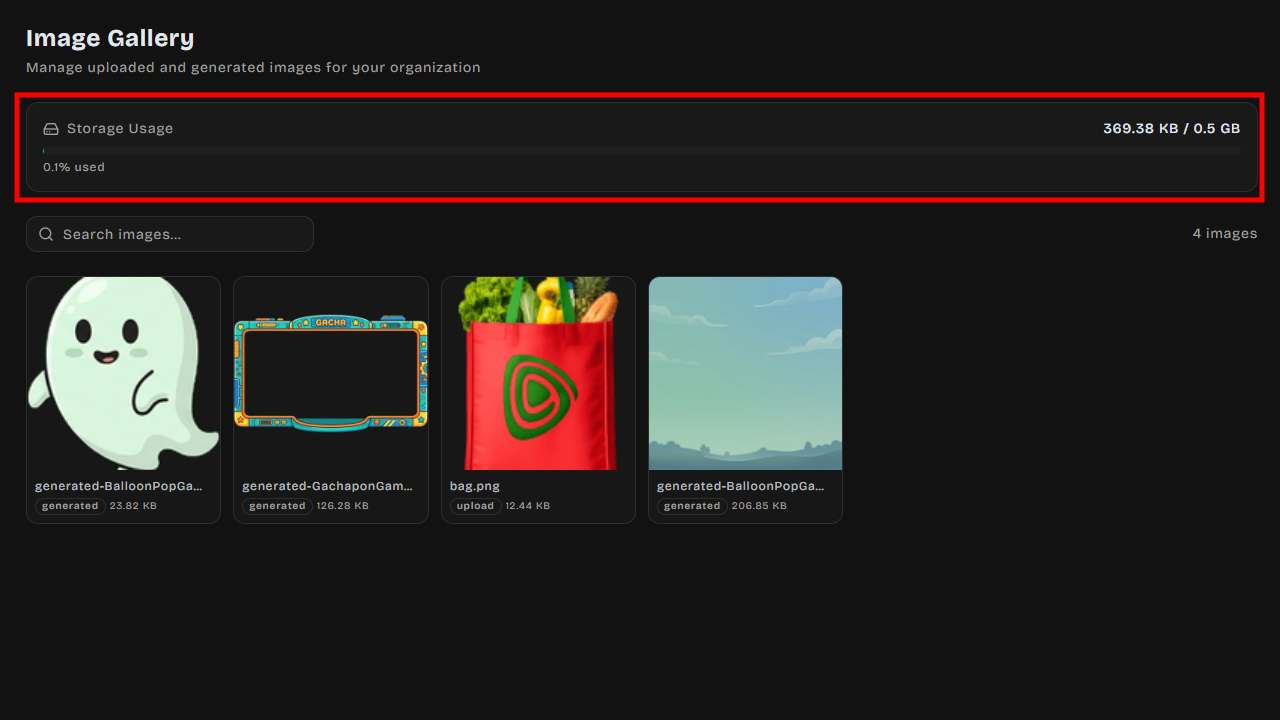
Image Actions
Section titled “Image Actions”Hover over any image thumbnail to reveal quick actions:
| Action | Description |
|---|---|
| Copy URL | Copies the image URL to your clipboard for use in games or external integrations |
| Download | Downloads the image file to your computer |
| Delete | Removes the image from your gallery (only if not currently in use) |
Deletion Safety
Section titled “Deletion Safety”When you attempt to delete an image, DailyPlay checks whether the image is currently being used as a:
- Game thumbnail
- Organization logo or icon
- Prize image
- Image embedded in game settings
If the image is in use, deletion is blocked and you’ll see a message explaining where it’s being used.
Image Sources
Section titled “Image Sources”Images appear in the gallery from two sources:
- Manual uploads — Images you upload directly through the game editor or image upload interface
- AI-generated — Images created using DailyPlay’s AI image generation tools
Gallery Picker
Section titled “Gallery Picker”When customizing a game or configuring prizes, you may see a Gallery Picker that lets you select an existing image from your library instead of uploading a new one. The picker can filter images by recommended dimensions for the specific use case.
Storage Limits
Section titled “Storage Limits”Each subscription tier includes a storage quota. If you reach your limit, you’ll need to delete unused images or upgrade your plan to continue uploading.