# Gallery
The **Gallery** is your organization's central image library. It stores all images that have been
uploaded manually or generated with AI, making them easy to find and reuse across your games,
prizes, and branding.
## Accessing the Gallery
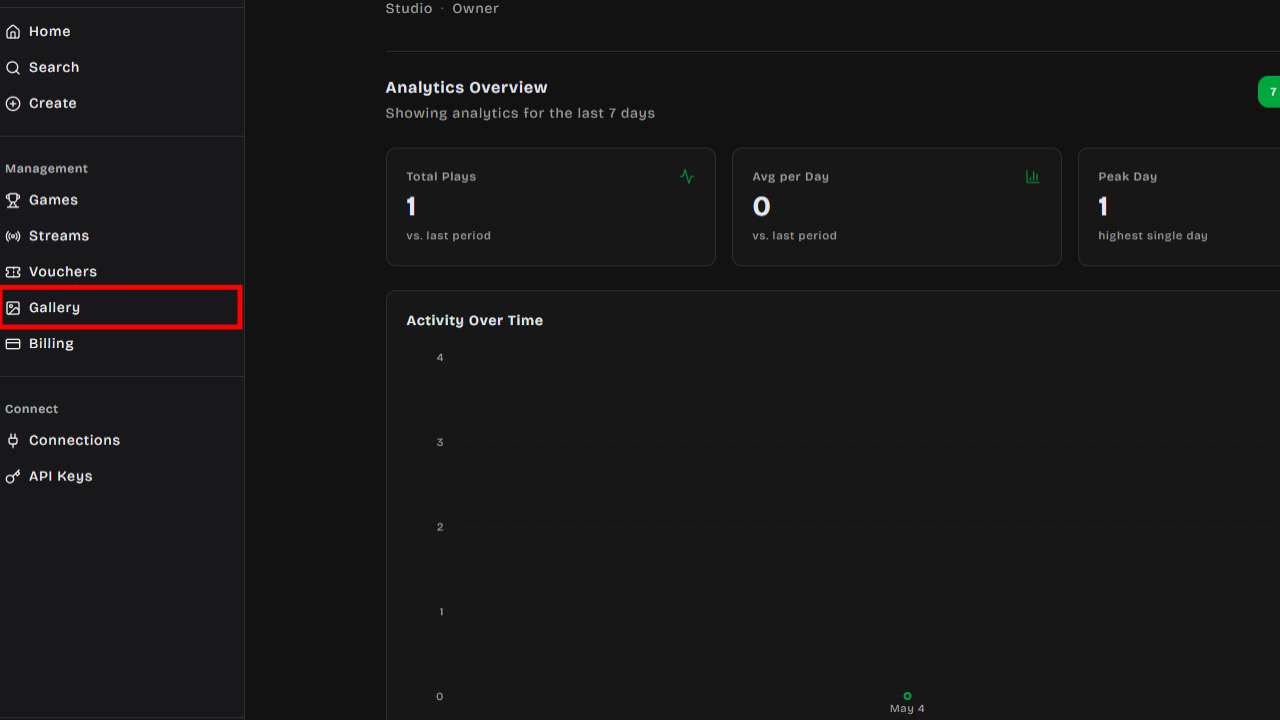
Click **Gallery** in the left sidebar under your organization's management section. You need
**Editor** role or higher to access the gallery.
## Features
### Image Grid
The gallery displays all your images in a responsive grid. You can browse thumbnails and click any
image to see a full preview with details such as:
- Original file name
- Dimensions (width × height)
- File size
- Source (uploaded or AI-generated)
- Upload date
### Search
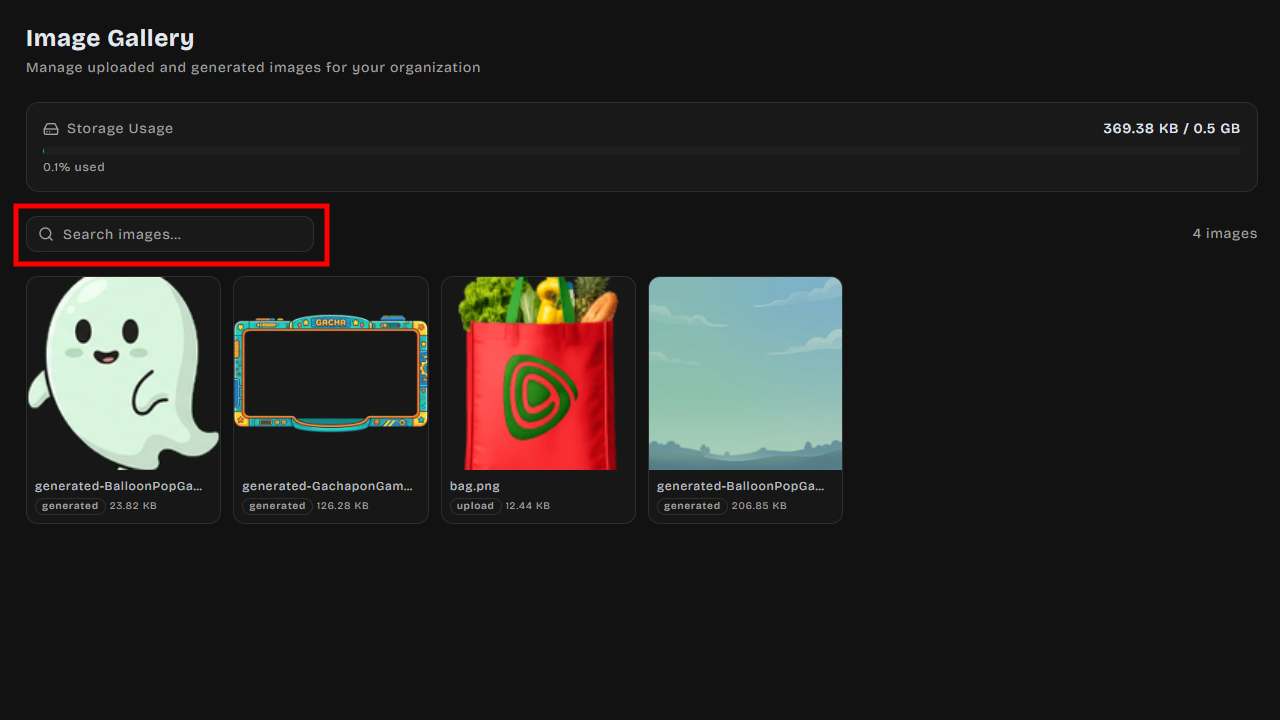
Use the search bar at the top to filter images by name, filename, or source type. Results update in
real time as you type.
### Storage Usage
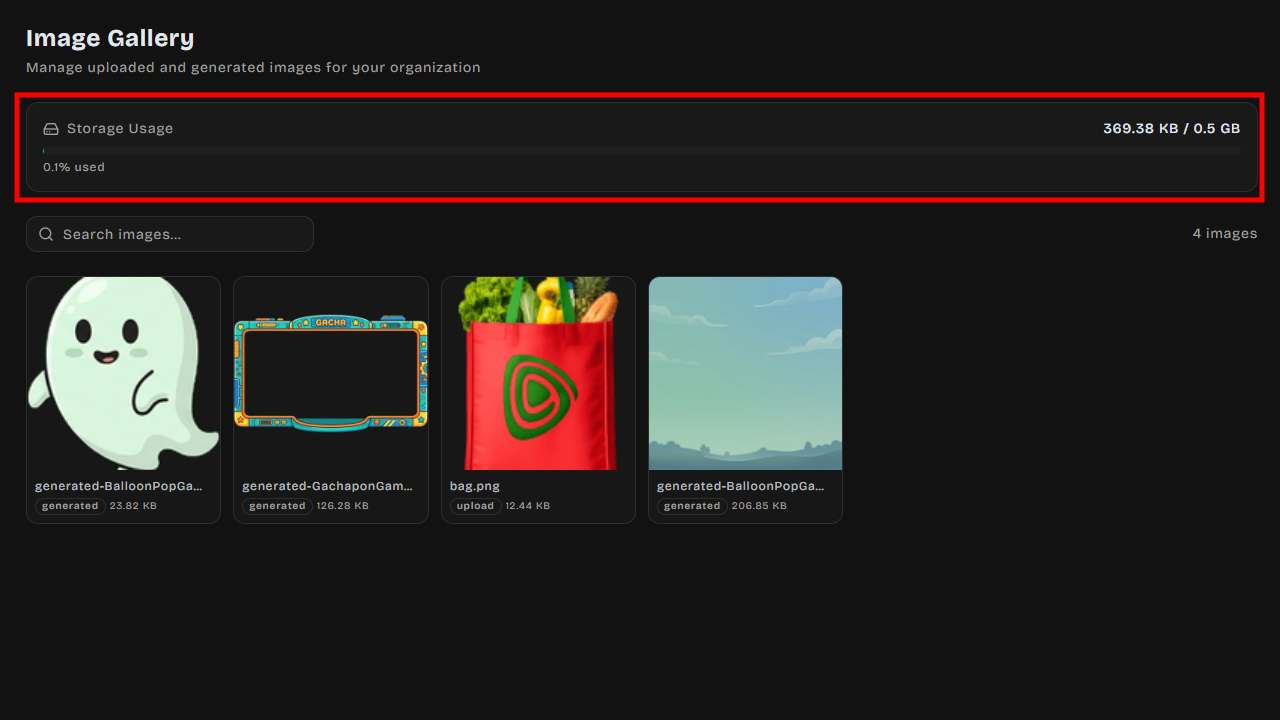
A storage bar at the top of the gallery shows how much space your organization has used relative to
your plan's limit. The bar changes color as you approach capacity:
- **Green** — Plenty of storage remaining
- **Yellow** — Over 80% used
- **Red** — Storage full
### Image Actions
Hover over any image thumbnail to reveal quick actions:
| Action | Description |
| ------------ | -------------------------------------------------------------------------------- |
| **Copy URL** | Copies the image URL to your clipboard for use in games or external integrations |
| **Download** | Downloads the image file to your computer |
| **Delete** | Removes the image from your gallery (only if not currently in use) |
### Deletion Safety
When you attempt to delete an image, DailyPlay checks whether the image is currently being used as
a:
- Game thumbnail
- Organization logo or icon
- Prize image
- Image embedded in game settings
If the image is in use, deletion is blocked and you'll see a message explaining where it's being
used.
## Image Sources
Images appear in the gallery from two sources:
1. **Manual uploads** — Images you upload directly through the game editor or image upload interface
2. **AI-generated** — Images created using DailyPlay's AI image generation tools
## Gallery Picker
When customizing a game or configuring prizes, you may see a **Gallery Picker** that lets you select
an existing image from your library instead of uploading a new one. The picker can filter images by
recommended dimensions for the specific use case.
## Storage Limits
Each subscription tier includes a storage quota. If you reach your limit, you'll need to delete
unused images or upgrade your plan to continue uploading.