
Customizing Your Game
DailyPlay’s game editor gives you full control over your game’s appearance and behavior. This guide covers all customization options.
The Game Editor
Section titled “The Game Editor”The editor is organized into sections:
- Basic Info — Title, description, thumbnail
- Visual Assets — Images, backgrounds, game elements
- Prizes — If you enable the Enable Prize System toggle, a prize configuration step will appear where you can set up prizes, win probabilities, and claim settings
- Game Configuration — Difficulty, duration, primary color (used for buttons and key UI elements), secondary color (used for accents and highlights), make your game discoverable, and optionally enable Call to Action Configuration via the toggle to capture emails
Customizing a Casual Game
Section titled “Customizing a Casual Game”Pick a template, set your title and description, upload your assets — and you’re ready to go.
Customizing a Prize Game
Section titled “Customizing a Prize Game”For lucky-draw games, you’ll also configure prizes, win probabilities, and claim settings.
Basic Information
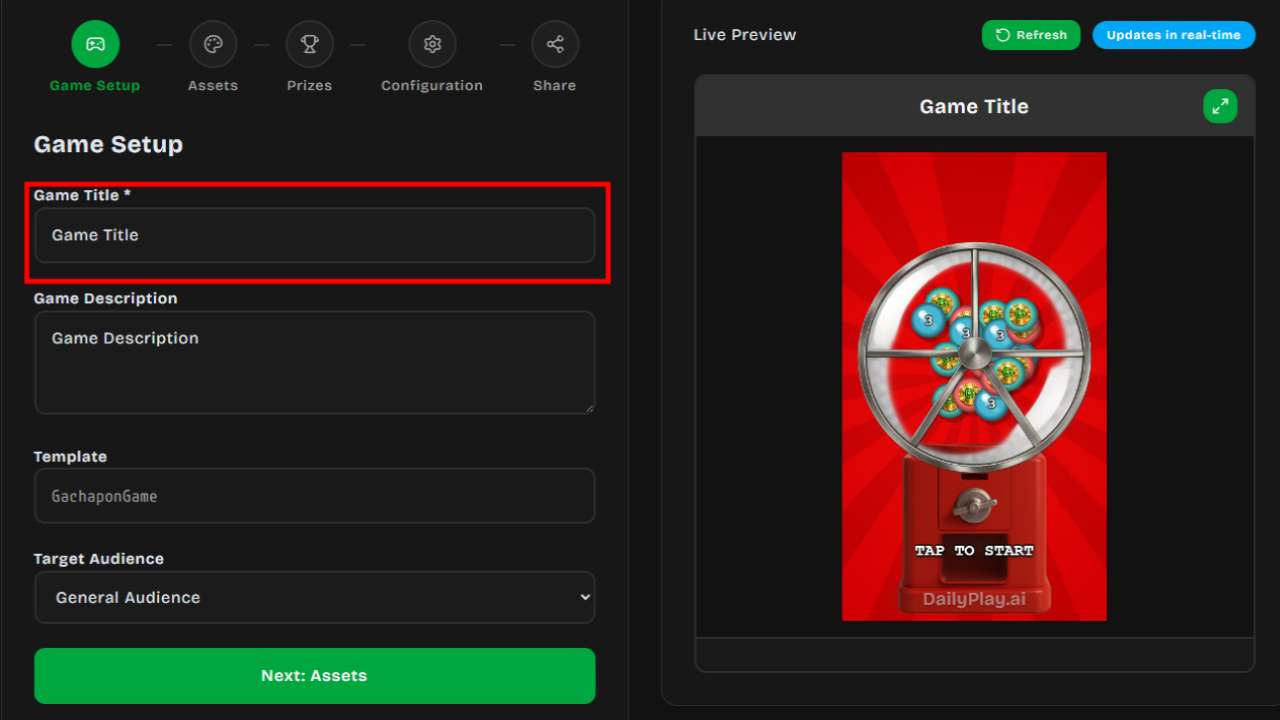
Section titled “Basic Information”Game Title
Section titled “Game Title”Give your game a clear, descriptive name. This appears:
- In the game’s header
- On shared links
- In your game management dashboard
Game Description
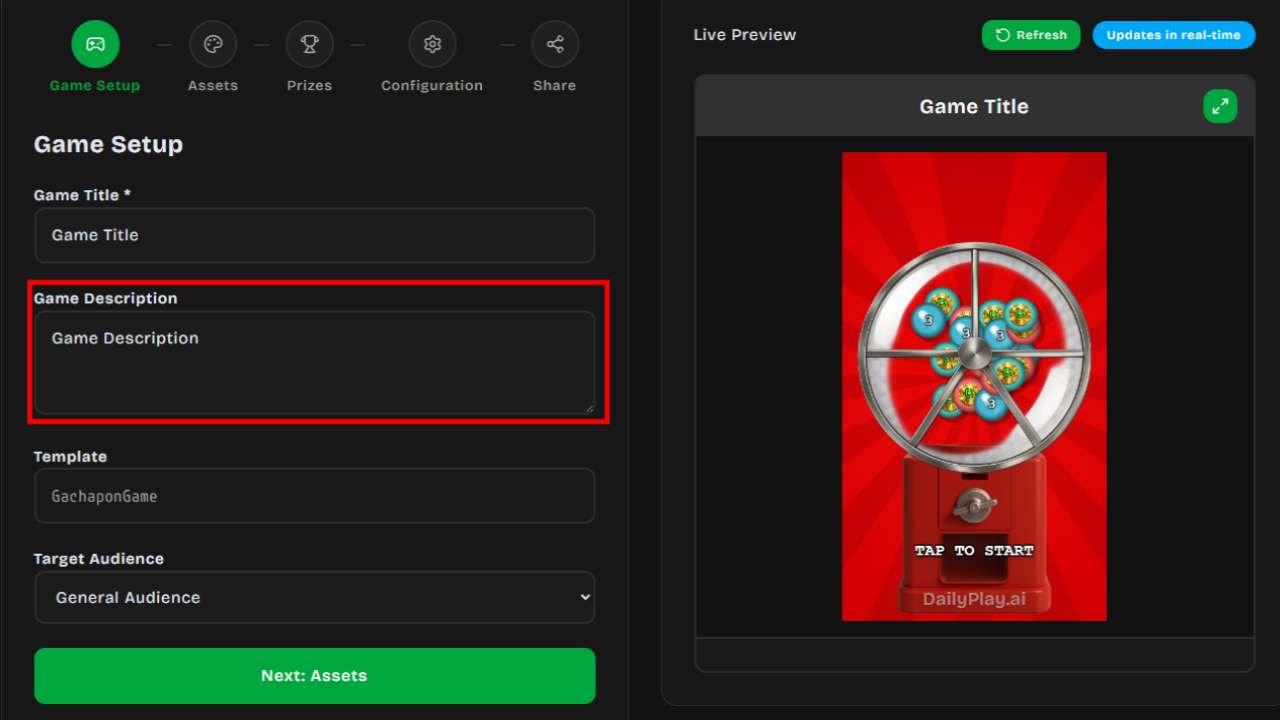
Section titled “Game Description”A brief description of your game. Keep it concise — 1-2 sentences that explain what the game is about.
Visual Assets
Section titled “Visual Assets”Each game template has customizable visual elements. Common assets include:
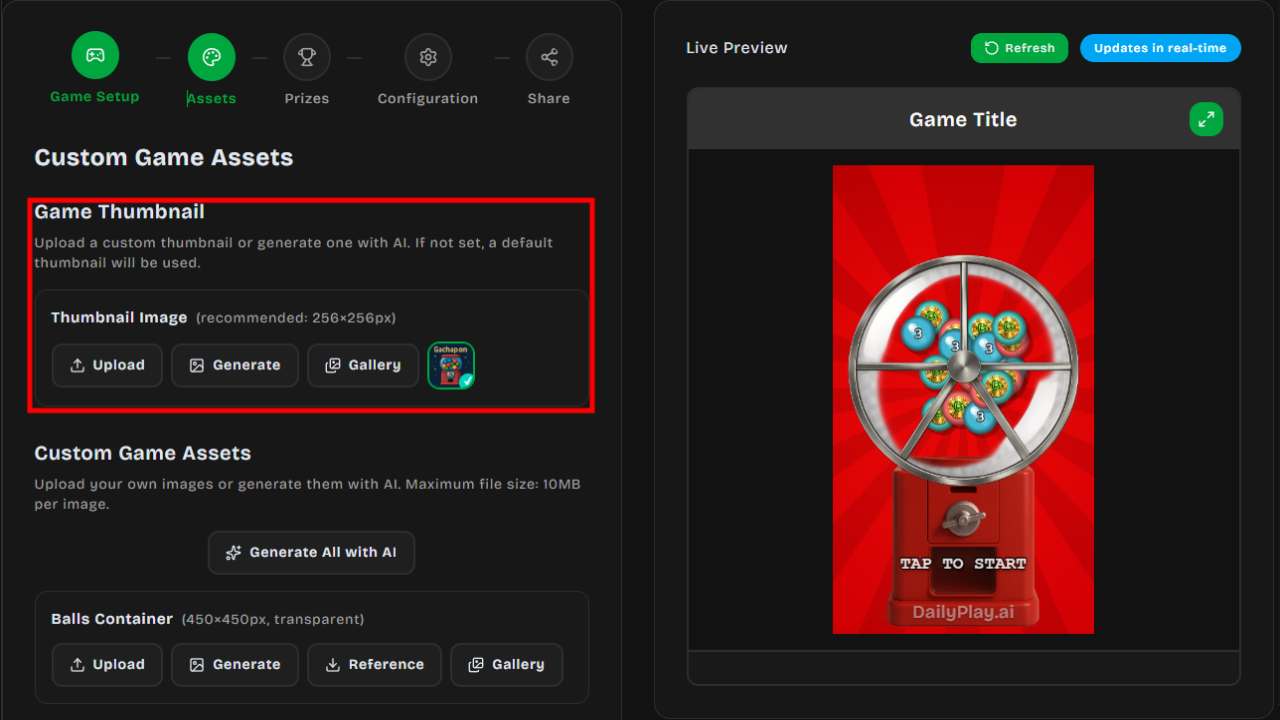
Thumbnail
Section titled “Thumbnail”The preview image shown when your game is shared. Upload a custom image or use the auto-generated one.
Background
Section titled “Background”The main game background. Options:
- Upload Image — Use your own image
- AI Generate — Describe what you want and generate an image
Game Elements
Section titled “Game Elements”Depending on the template, you can customize:
- Characters/Avatars — The player’s character
- Objects — Items to collect, obstacles to avoid
- UI Elements — Score displays, buttons
- 3D Textures — For 3D game templates, customize textures on planes, walls, and spheres. Upload your own texture or use AI Generate
Uploading Images
Section titled “Uploading Images”Supported formats: PNG, JPG, WEBP, GIF
For best results:
- Use high-resolution images (at least 512x512)
- PNG with transparency for overlays
- Keep file sizes under 5MB
AI Image Generation
Section titled “AI Image Generation”DailyPlay includes AI image generation:
- Enter a text prompt describing your desired image
- Click Generate
- Wait 30-60 seconds for generation
- Preview the result
- Regenerate if needed, or accept and continue
Reference Image
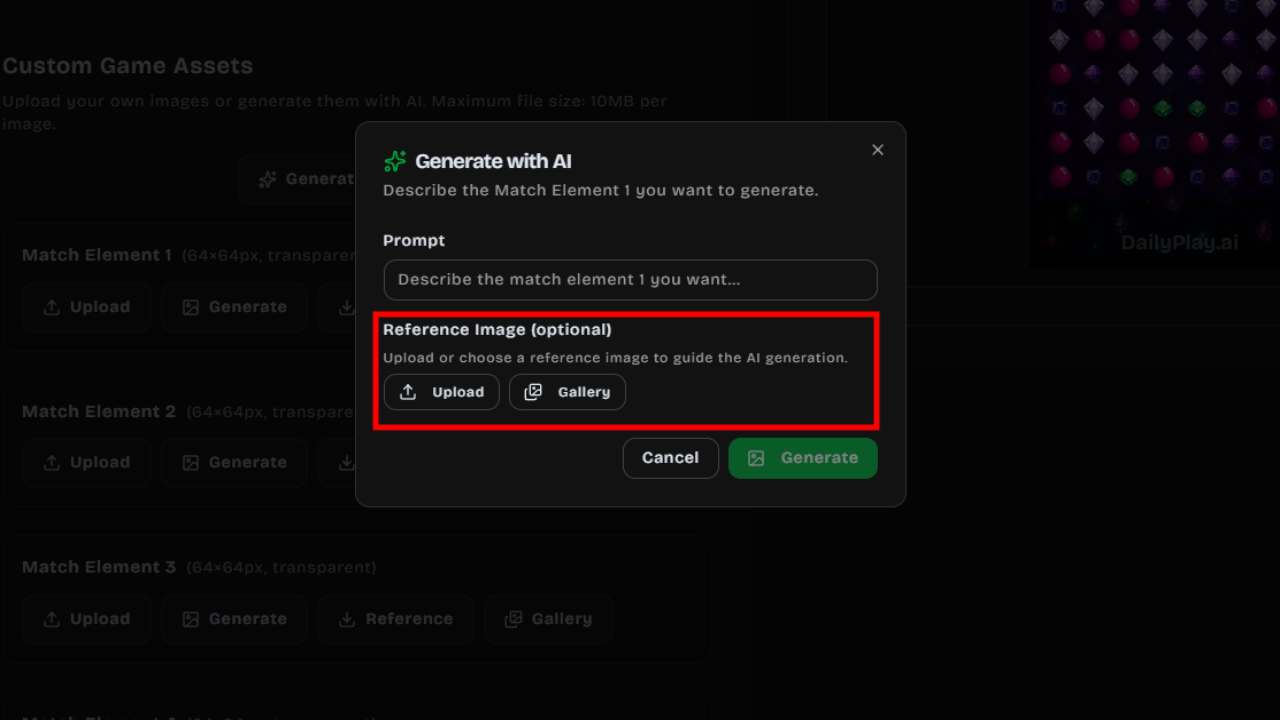
Section titled “Reference Image”When using AI generation, you can provide a Reference Image to guide the style and content of generated assets. This is optional but helps produce more consistent results.
- Upload — Select an image from your device (PNG, JPG, or WEBP, max 5MB) to use as a reference
- Gallery — Browse and pick from your organization’s previously uploaded images
The reference image influences the AI output so generated assets match your brand’s look and feel.
Game Configuration
Section titled “Game Configuration”Difficulty
Section titled “Difficulty”Control how challenging the game is:
| Level | Description |
|---|---|
| 1 (Easiest) | Very forgiving, great for demos |
| 2-3 | Casual difficulty |
| 4-5 | Moderate challenge |
| 6-7 | Challenging |
| 8+ (Hard) | Expert level |
Duration
Section titled “Duration”Set how long the game lasts (in seconds). Common settings:
- 30 seconds — Quick engagement
- 60 seconds — Standard gameplay
- 90-120 seconds — Extended sessions
Primary & Secondary Color
Section titled “Primary & Secondary Color”Customize your game’s color scheme to match your brand:
- Primary Color — Used for buttons, headers, and key interactive elements
- Secondary Color — Used for accents, highlights, and supporting UI elements
These colors apply across the game interface, ensuring a consistent branded experience.
Discoverable
Section titled “Discoverable”Choose whether your game appears in public searches:
- On — Anyone can find and play your game
- Off — Only accessible via direct link
Post-Game Configuration
Section titled “Post-Game Configuration”Call-to-Action (CTA)
Section titled “Call-to-Action (CTA)”After the game ends, show players a CTA screen:
Email Capture
Section titled “Email Capture”Collect player emails with a customizable form:
- Title — e.g., “Thanks for playing!”
- Message — Explain what they’ll receive
- Consent Checkbox — For marketing opt-in
Custom CTA
Section titled “Custom CTA”Display a message with optional action button:
- Link to your website
- Show a promotional offer
- Direct to social media
Post-Game Redirect URL
Section titled “Post-Game Redirect URL”Optionally show a link popup after the game ends — useful for sending players to a landing page, store, or survey:
- In the game editor, enable Post-Game URL
- Enter the destination URL
- Optionally set a title, description, and button label
Prize Configuration
Section titled “Prize Configuration”Some game templates require prizes (Spin the Wheel, Gachapon, Grid Box, Claw Machine, Scratch Card), while others make it optional. For optional games, enable the Enable Prize System toggle to add prizes.
Prize Slots
Section titled “Prize Slots”Each game has a minimum and maximum number of prize slots depending on the template:
| Game | Slots |
|---|---|
| Spin the Wheel | 3–10 segments |
| Gachapon | 3–10 capsules |
| Grid Box | Exactly 9 boxes |
| Claw Machine | 3–10 items |
| Scratch Card | 1–10 cards |
Prize Slot Fields
Section titled “Prize Slot Fields”For each prize slot, configure:
- Prize Name — What the player sees (max 50 characters)
- Description — Optional details about the prize (max 200 characters)
- Prize Image — Upload an image for the prize (256×256 recommended)
- Probability — Chance of winning as a percentage (all slots must total 100%)
- Min Score — Minimum score required to win (only available on supported game templates)
Prize Types
Section titled “Prize Types”Each slot must have one of the following types:
| Type | Description |
|---|---|
| Item | A physical or digital item (e.g., “32" TV”, “Free Coffee”) |
| Voucher | A single static voucher code shown to the winner |
| Voucher Set | Pulls from a managed pool of voucher codes — codes are auto-distributed to winners |
| External Link | A URL for off-platform redemption |
| No Prize | A “Try again” slot (hidden in single-prize mode) |
Prize Claim QR
Section titled “Prize Claim QR”Use Show Prize QR to control whether winners see a scannable QR code for the claim/voucher code. The toggle defaults to on. Turn it off when you only want the code shown as text (for example, when players must type the code into another system).
Voucher Set Integration
Section titled “Voucher Set Integration”To use the Voucher Set type:
- Go to the Vouchers page and create a voucher set
- Upload or generate voucher codes in that set
- Back in the prize editor, select Voucher Set as the type
- Choose your voucher set from the dropdown — it shows the available code count
- Codes are automatically distributed to winners one at a time
See Voucher System for more details.
Reordering and Managing Slots
Section titled “Reordering and Managing Slots”- Use the up/down arrows to reorder prize slots
- Click Add to add more slots (up to the template maximum)
- Click Remove to delete slots (down to the template minimum)
Preview Mode
Section titled “Preview Mode”Always preview your game before publishing:
- Click Preview in the editor
- Play through the entire game
- Check:
- All images load correctly
- Game difficulty feels right
- Post-game CTA displays properly
- Mobile layout works
Next Steps
Section titled “Next Steps”- Learn about Publishing Your Game
- Set up Prizes and Vouchers