
Publishing Your Game
Once you’ve customized your game, it’s time to publish and share it with the world.
Publishing Options
Section titled “Publishing Options”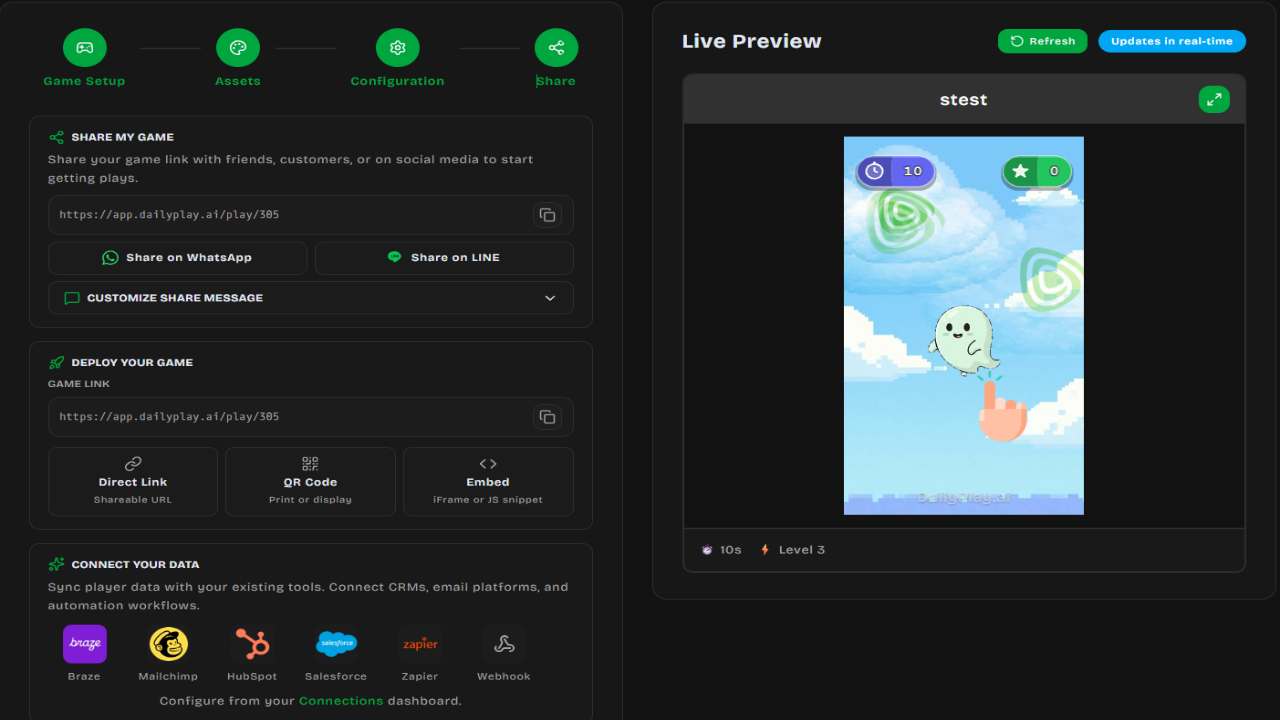
Save as Draft
Section titled “Save as Draft”Not ready to publish yet? Save your work as a draft:
- Click Save as Draft
- Access drafts from Manage Games
- Continue editing anytime
Create Game (Publish)
Section titled “Create Game (Publish)”Ready to go live:
- Click Create Game
- Your game is created and becomes playable
- You’ll be shown sharing options with your game link
Game States
Section titled “Game States”Games can be in one of these states:
| Status | Description |
|---|---|
| Draft | Work in progress, not publicly playable |
| Published | Live and playable via link |
| Archived | Hidden from public, preserved for records |
You can change a game’s status from the Edit Game page:
| Current Status | Available Actions |
|---|---|
| Draft | Publish Game or Archive |
| Published | Unpublish (back to Draft) or Archive |
| Archived | Restore to Draft |
Managing Your Games
Section titled “Managing Your Games”Access your games from the Manage Games page (via the sidebar menu):
View All Games
Section titled “View All Games”See all games you’ve created with:
- Thumbnail
- Status badge (Draft / Published / Archived)
- Play count
- Title and description
- Search, sort by title, creation date, or play count
Game Actions
Section titled “Game Actions”Each game card has four action buttons:
| Action | Description |
|---|---|
| View | Opens the game in a new tab |
| Edit | Opens the game editor to update assets, settings, and prizes |
| Share | Opens the share modal with link, QR code, and embed options |
| Delete | Permanently deletes the game (cannot be undone) |
Edit a Game
Section titled “Edit a Game”Click Edit to:
- Update visual assets
- Change game configuration
- Modify prize configurations
- Update post-game CTAs
- Change game status (publish, unpublish, archive)
Delete a Game
Section titled “Delete a Game”To permanently delete a game:
- Click the Delete button
- Confirm the deletion in the dialog
Sharing Your Game
Section titled “Sharing Your Game”After publishing, a sharing screen appears with multiple ways to distribute your game:
Direct Link
Section titled “Direct Link”Every game gets a unique URL that you can copy and share anywhere.
QR Code
Section titled “QR Code”Generate and download a QR code for physical marketing:
- Click Generate QR Code
- Download as PNG
- Use in print materials, posters, or displays
Embed on Your Website
Section titled “Embed on Your Website”Two embedding options:
- Simple iframe — Copy the
<iframe>snippet and paste it into your website HTML - Floating Play button — A fixed button that opens the game in an overlay; supports Shopify, Shopline, and general HTML
See Embed on Website for iframe details and Floating Play Button for the overlay widget.
WhatsApp Sharing
Section titled “WhatsApp Sharing”Share your game link directly via WhatsApp from the sharing screen.
Connect Your Data
Section titled “Connect Your Data”After publishing, you can connect your game data to external platforms:
- Braze, Mailchimp, HubSpot, Salesforce, Zapier, and Webhooks
- Visit the Connections page to set up integrations
Player Experience
Section titled “Player Experience”When players open your game, they can:
- Play the game
- Like your game (requires sign-in)
- Share via their device’s native share menu or clipboard
- Replay after finishing
- Record & Share — Record their gameplay as a video, then upload and share or download it
- View High Scores — See the leaderboard
Game URLs
Section titled “Game URLs”Standard URL (for players)
Section titled “Standard URL (for players)”https://app.dailyplay.ai/play/[game-id]Embedded URL (for iframes)
Section titled “Embedded URL (for iframes)”https://app.dailyplay.ai/embed/[game-id]Analytics
Section titled “Analytics”Track your game’s performance:
- Total Plays — How many times your game was played
- Unique Players — Individual users who played
- Top Scores — Leaderboard of best performances
- Engagement — Likes and shares
See Analytics for more details.
Best Practices
Section titled “Best Practices”Before Publishing
Section titled “Before Publishing”- Test the game on mobile and desktop
- Verify all images load correctly
- Check prize configurations (if applicable)
- Review post-game CTA text
After Publishing
Section titled “After Publishing”- Share on social media and messaging apps
- Monitor initial plays for issues
- Collect feedback from early players
- Iterate and improve based on analytics
Troubleshooting
Section titled “Troubleshooting”Game not loading
Section titled “Game not loading”- Check your internet connection
- Try refreshing the page
- Clear browser cache
Images not displaying
Section titled “Images not displaying”- Verify image files are under 5MB
- Use supported formats (PNG, JPG, WEBP)
- Re-upload if generation failed
Analytics not updating
Section titled “Analytics not updating”- Analytics may have a slight delay
- Check back in a few minutes
Next Steps
Section titled “Next Steps”- Learn about Sharing Options
- Set up Embedding for your website
- Configure Analytics tracking