# Social & Leaderboard
Social mode turns a stream into a collaborative team experience. Instead of individual play, every
participant contributes to a shared team score — perfect for live events, team-building activities,
trade shows, and community engagement campaigns.
## How Social Mode Works
When social mode is active on a stream:
- Every player's score is added to a **team total** for that stream
- A real-time scoreboard shows team progress, participant count, time remaining, and milestone
achievements
- Players see the collective score update as others play simultaneously
- Reaching a score milestone triggers an unlock popup with an optional prize image and redemption
code (rendered as a QR code on the scoreboard)
## Setting Up the Scoreboard
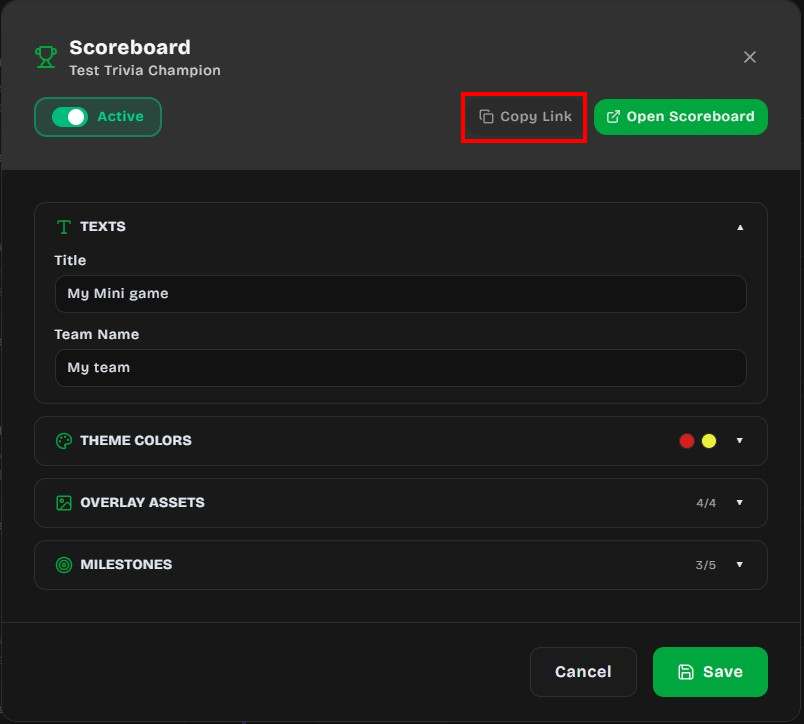
The scoreboard is configured per stream from the **Streams** page.
1. Go to **Streams** and locate the stream you want to run in team mode
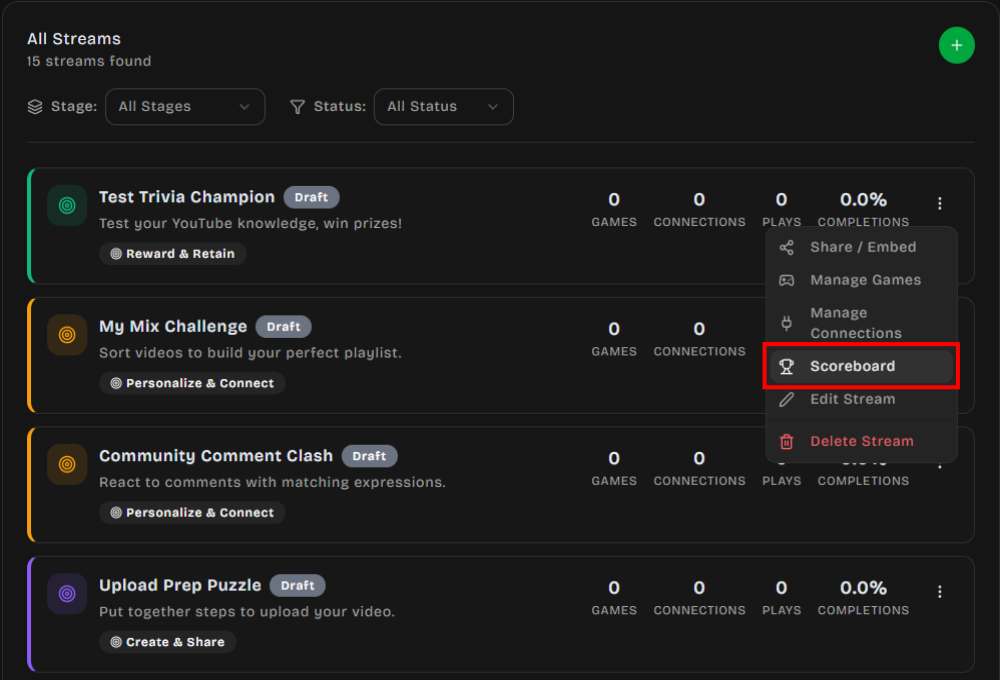
2. Open the stream's actions menu and choose **Scoreboard**
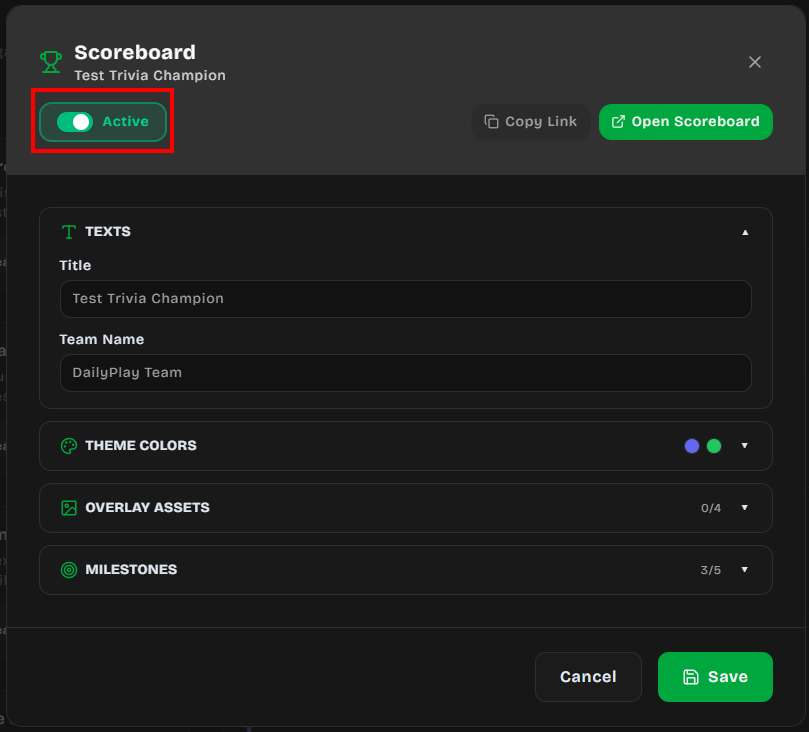
3. In the Scoreboard configuration modal, toggle the switch to **Active** — this enables social
mode on the stream
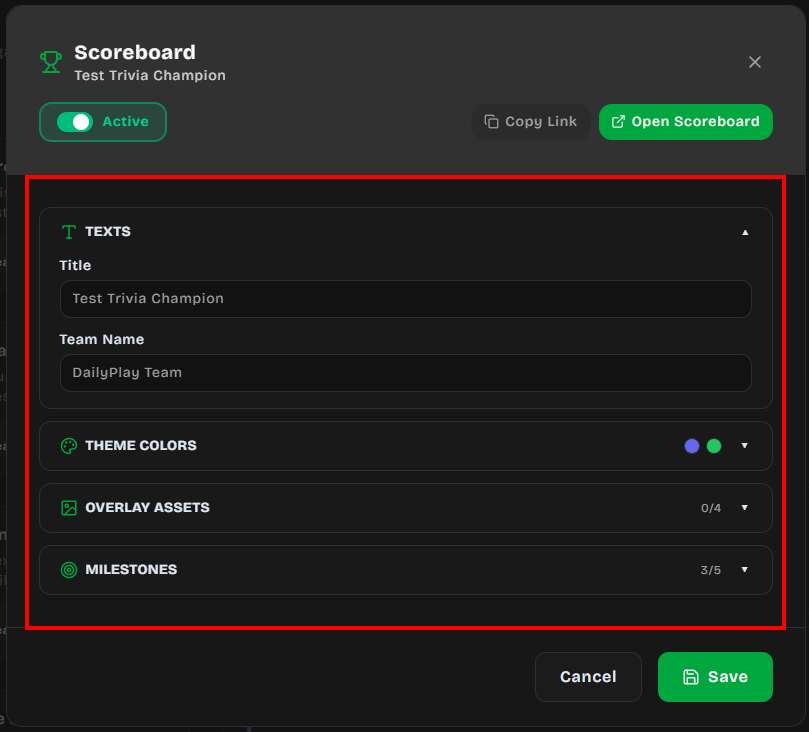
4. Configure the sections described below
5. Click **Save** when you're done
The modal also exposes two shortcuts:
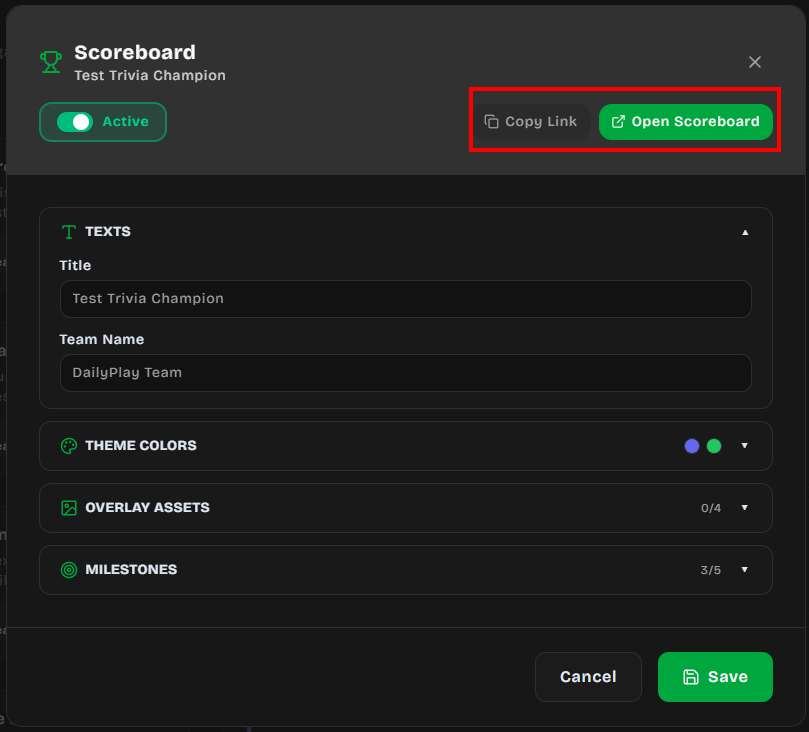
- **Copy Link** — copies the public scoreboard URL to your clipboard
- **Open Scoreboard** — opens the fullscreen scoreboard in a new tab (only available when the
scoreboard is Active)
### 1. Texts
- **Title** — displayed at the top of the scoreboard overlay (e.g. your event name)
- **Team Name** — shown on the score card below the team logo
- **Scan to Play title / description** _(optional)_ — custom copy for the fullscreen “Scan to Play”
QR panel; leave blank to use the defaults
- **Collect Player Name** — when enabled, players can enter a name for social highscores after a
game. Default is **off**.
:::tip
If your stream already uses [Lead Capture](/streams/lead-capture/) with the **Name** field enabled,
that name is reused for highscores and you do not need **Collect Player Name**. Turn Collect Player
Name on only when you want a scoreboard name prompt without (or instead of) a CTA name field.
:::
### 2. Theme Colors
- **Primary Color** — used for the replay button and progress bar
- **Secondary Color** — used for the score glow and submit button
### 3. Overlay Assets
Upload, generate with AI, or pick from your gallery the four visual layers used by the scoreboard
overlay:
- **Landscape Background** (1920×1080) — shown when the scoreboard runs in landscape orientation
- **Portrait Background** (450×800) — shown when the scoreboard runs in portrait orientation
- **Team Frame** (1024×1024) — decorative frame around the score panel
- **Team Logo** (256×256, transparent PNG) — your team logo or badge
### 4. Milestones
Add up to **5 milestones** that the team unlocks as their combined score grows. For each
milestone:
- **Prize Name** — the label shown when the milestone is reached
- **Milestone Score** — the team score required to unlock it (must be higher than the previous
milestone, otherwise saving is blocked)
- **Redemption Code** _(optional)_ — a code players can use to claim the prize; rendered as a QR
code on the scoreboard
- **Prize Image** _(optional)_ — an image displayed in the unlock popup
When the team crosses a milestone score, the scoreboard plays a confetti burst and shows the
unlock popup with the prize image and QR code.
:::note
Only players who are playing a game on the `/stream` page will see the **Redeem** button and the milestone prizes (prize name and prize image). The fullscreen scoreboard display does not show individual prize details — it only shows the milestone progress bar and a "Scan to Play" QR code for spectators to join.
:::
### 5. Display Sections
Use **Display Sections** to choose which panels appear on the live fullscreen scoreboard. All
sections are **on** by default.
| Toggle | What it shows |
| ---------------------- | -------------------------------------------------- |
| **Score** | Team total score |
| **Players** | Participant count |
| **Time Left** | Countdown until the stream ends |
| **Score Progress** | Milestone progress bar |
| **Top 10 Highscores** | Individual top scores for the stream |
#### How rotation works
- The team **Score** panel stays visible when enabled
- **Time Left**, **Players**, and **Score Progress** share space and rotate in pairs (up to two at
a time)
- **Top 10 Highscores** always gets its **own** slide so the list has room to display
- When more than one slide is needed, the scoreboard auto-rotates about every **6 seconds**
Turn off sections you do not need for a cleaner projection — for example, hide **Time Left** for
an open-ended event, or hide **Top 10 Highscores** when you only want the team total.
## Time Left / Countdown Timer
The scoreboard displays a live countdown timer that shows how much time remains before the stream
ends. This is driven by the stream's **Start Date**, **End Date**, and **Timezone** settings — no
extra configuration is needed inside the scoreboard modal.
### How to Set It Up
1. When creating or editing a stream, scroll to the **Schedule** section
2. Set the **Start Date** and **End Date** for when you want the event to finish
3. Select the correct **Timezone** for your event location
The timer starts counting down automatically on the scoreboard once the stream is active.
### How the Timer Displays
The countdown format adapts based on how much time remains:
| Time remaining | Display format | Example |
| -------------- | ------------------- | ------------ |
| Under 1 minute | `00:SS` | 00:42 |
| Under 1 hour | `MM:SS` | 12:35 |
| Under 24 hours | `HH:MM:SS` | 03:45:12 |
| Under 30 days | `Xd XXh` | 2d 14h |
| 30 days+ | `Xmo Xd` | 1mo 5d |
Below the timer, a contextual label appears based on the stream's timezone:
- **Ending soon** — less than 60 seconds remaining
- **Ends this morning / afternoon / evening / tonight** — ends within the current day
- **Ends May 30** — ends on a future date
- **Ended** — the stream end time has passed
## Fullscreen Leaderboard Display
The public scoreboard page is designed to be projected at live events. Once social mode is active,
its URL is:
```
https://app.dailyplay.ai/stream/{orgSlug}/{streamSlug}/scoreboard
```
You can also grab this link from the **Copy Link** button in the Scoreboard modal.
### Leaderboard Features
- **Configurable display sections** — show or hide Score, Players, Time Left, Score Progress, and
Top 10 Highscores; enabled secondary panels rotate automatically (see [Display Sections](#5-display-sections))
- **Auto-rotates** between portrait and landscape layouts based on the display orientation
- **Animated score increases** (fullscreen only) — when the team score jumps, floating "+X"
indicators rise from the score with tiered effects. This animation only appears on the
fullscreen scoreboard display, not on the player's end-of-game screen.
- Small increases: green text
- Medium increases: blue text with glow
- Large increases: yellow text with enhanced glow and larger size
- **Milestone progress bar** — shows the next milestone and celebrates each one when reached.
Unreached milestones display the prize name as **"?"** to keep the reward hidden until the team
score crosses the threshold. Once unlocked, the actual prize name is revealed.
- **QR codes** — there are two distinct QR code experiences:
- **Fullscreen scoreboard** — displays a single "Scan to Play" QR code (in landscape mode) that
encodes the stream URL, allowing spectators to join the game from their phone. It does **not**
show individual milestone redemption codes.
- **Player stream page** — after completing a game, players who have unlocked milestones see a
**Redeem** button. Tapping it opens an overlay with a QR code for each unlocked milestone's
redemption code, along with the prize name, prize image, and a tap-to-copy code badge.
- **Real-time polling** — the scoreboard refreshes every 10 seconds, no manual reload needed
### Display Tips
- Open the scoreboard URL on a large screen or projector at your event
- Press **F11** for true browser fullscreen (no UI chrome)
- For landscape projection on a phone or tablet, opening fullscreen will also attempt to lock
the device to landscape orientation
- Keep the player game URL on a separate device (or share it via QR code) so the scoreboard
display stays clean
## Use Cases
- **Conference engagement** — attendees play games on their phones, the team score displays on
stage
- **Retail events** — in-store customers contribute to a collective goal that unlocks a prize for
everyone
- **Team building** — departments compete by assigning different streams to different teams
- **Product launches** — unlock reveal content when the community reaches a score milestone