
Streams Overview
เนื้อหานี้ยังไม่มีในภาษาของคุณ
Streams are campaign containers that let you group multiple games into a single, shareable experience. Use streams to build marketing funnels, run time-limited promotions, drive team engagement at live events, or guide players through a sequence of games.
What Is a Stream?
Section titled “What Is a Stream?”A stream is a collection of games bundled together under one link. Instead of sharing individual games, you can share a stream that presents players with multiple games — either in a fixed order or randomized.
Key capabilities:
- Group multiple games into one campaign
- Set start and end dates to schedule promotions
- Control game ordering (sequential or random)
- Limit total plays or plays per user
- Organize streams into funnel stages for pipeline visualization
- Run social/team mode with real-time leaderboards
- Collect leads with Lead Capture (email, name, phone)
- Connect webhooks and integrations for real-time event tracking
- Track UTM parameters for marketing attribution
Stream Statuses
Section titled “Stream Statuses”Streams follow a lifecycle with the following statuses:
| Status | Description |
|---|---|
| Draft | Stream is being set up, not yet visible |
| Scheduled | Stream is configured with a future start date |
| Active | Stream is live and accepting plays |
| Paused | Stream is temporarily stopped |
| Completed | Stream has reached its end date or play limit |
| Archived | Stream is retired and no longer accessible |
Creating a Stream
Section titled “Creating a Stream”- Navigate to your organization dashboard
- Click Streams in the sidebar
- Click Create Stream
- Enter a name and optional description
- Add games to the stream (see Adding Games)
- Configure scheduling and settings
- Publish the stream
Scheduling
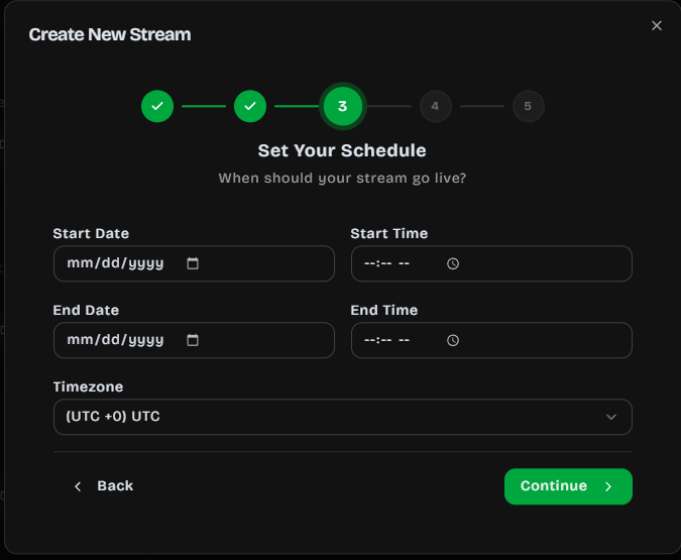
Section titled “Scheduling”Set a start and end date to control when your stream is available:
- Start date (
start_at) — The stream becomes playable at this time - End date (
end_at) — The stream stops accepting plays after this time - Timezone — All dates are interpreted in the selected timezone
If a player visits the stream before the start date, they see a countdown timer. After the end date, the stream shows a completion message.
Adding Games
Section titled “Adding Games”Add games to your stream from your organization’s published games:
- Open your stream
- Click Add Games
- Select one or more games from your library
- Arrange the display order (drag to reorder)
Per-Game Availability
Section titled “Per-Game Availability”Each game within a stream can have its own availability window:
- Available from — When the game becomes playable within the stream
- Available until — When the game is no longer playable
This lets you drip-release games over the duration of a campaign.
Game Ordering
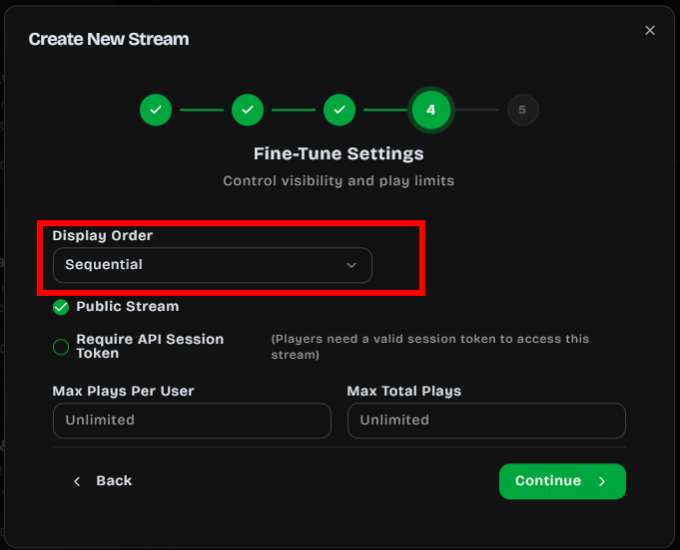
Section titled “Game Ordering”Choose how games are presented to players:
- Sequential — Players see games in the order you set. Useful for guided journeys or multi-step funnels.
- Random — Games are shuffled for each player. Useful for variety packs or A/B testing.
When a stream has more than one game, players can tap Next Game after finishing to move on — there is no automatic countdown that advances to the next game for them.
Lead Capture
Section titled “Lead Capture”Enable a CTA form on the stream to collect email, name, and phone before or after play. When Name is enabled and the game has highscores, that name is reused for the highscore so players are not asked twice.
See Lead Capture for field options, timing, and how leads appear in Reports.
Play Limits
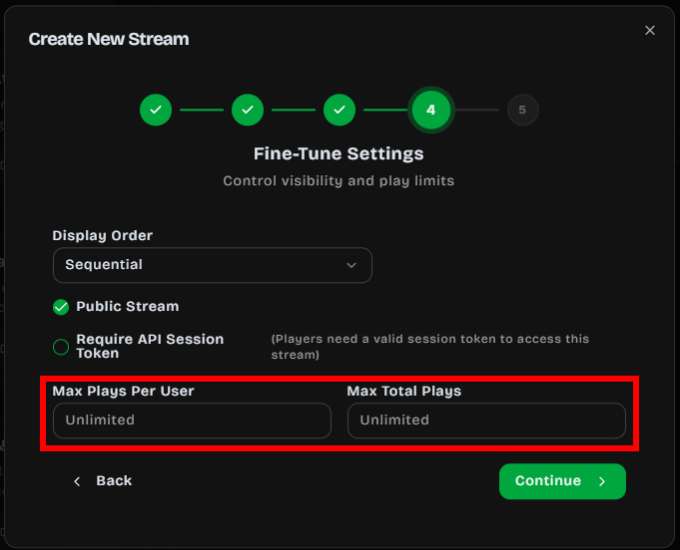
Section titled “Play Limits”Control how many times games can be played:
- Max plays per user — Limit each player to a set number of plays
- Max total plays — Cap the total number of plays across all users
UTM Tracking
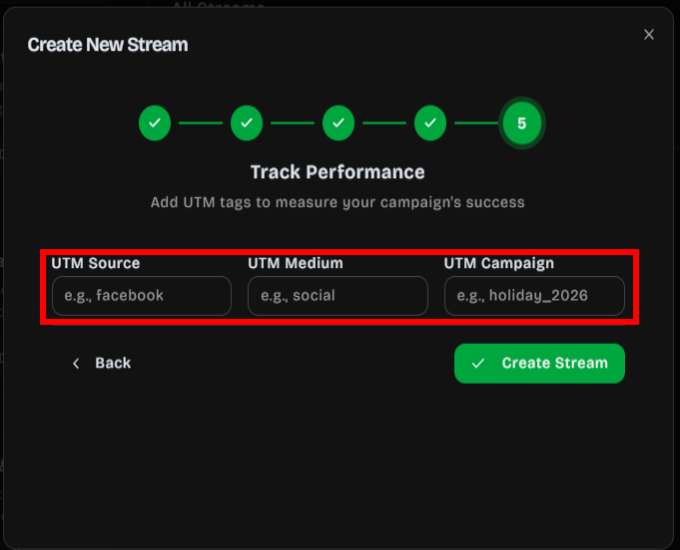
Section titled “UTM Tracking”Streams support UTM parameters for marketing attribution:
utm_sourceutm_mediumutm_campaignutm_contentutm_term
These are passed through to your webhook events and analytics.
Sharing a Stream
Section titled “Sharing a Stream”Every stream has a unique public URL:
https://app.dailyplay.ai/stream/[org-slug]/[stream-slug]Sharing options include:
- Direct link — Copy the stream URL to share via email, SMS, or social media
- QR code — Generate a scannable QR code for print materials or in-store displays
- Embed (iframe) — Embed the stream directly on your website with a responsive 450×800 portrait frame
- JavaScript snippet — Dynamically insert the stream player into any webpage
For access control:
- Require a session token for authenticated access
Connections & Webhooks
Section titled “Connections & Webhooks”Attach connections to a stream to receive real-time events when players interact with your games. Supported integrations include Braze, Zapier, MailChimp, HubSpot, Salesforce, Segment, and custom webhooks.
Common use cases:
- CRM updates on game completion
- Email triggers on prize redemption
- Analytics tracking across your marketing stack
- Lead capture and audience segmentation
You can configure which trigger events fire for each connection (e.g., play_complete,
prize_redemption).
Publish to LINE
Section titled “Publish to LINE”Connect a LINE LIFF or MINI App at the organization level to get a permanent LINE link for each stream. Add that link to your Official Account rich menu or rich message so players open the campaign inside LINE.