# Customizing Your Game
DailyPlay's game editor gives you full control over your game's appearance and behavior. This guide
covers all customization options.
## The Game Editor
The editor is organized into sections:
1. **Basic Info** — Title, description, thumbnail
2. **Visual Assets** — Images, backgrounds, game elements
3. **Prizes** — If you enable the **Enable Prize System** toggle, a prize configuration step will appear where you can set up prizes, win probabilities, and claim settings
4. **Game Configuration** — Difficulty, duration, primary color (used for buttons and key UI elements), secondary color (used for accents and highlights), make your game discoverable, and optionally enable **Call to Action Configuration** via the toggle to capture emails
#### Customizing a Casual Game
Pick a template, set your title and description, upload your assets — and you're ready to go.
#### Customizing a Prize Game
For lucky-draw games, you'll also configure prizes, win probabilities, and claim settings.
## Basic Information
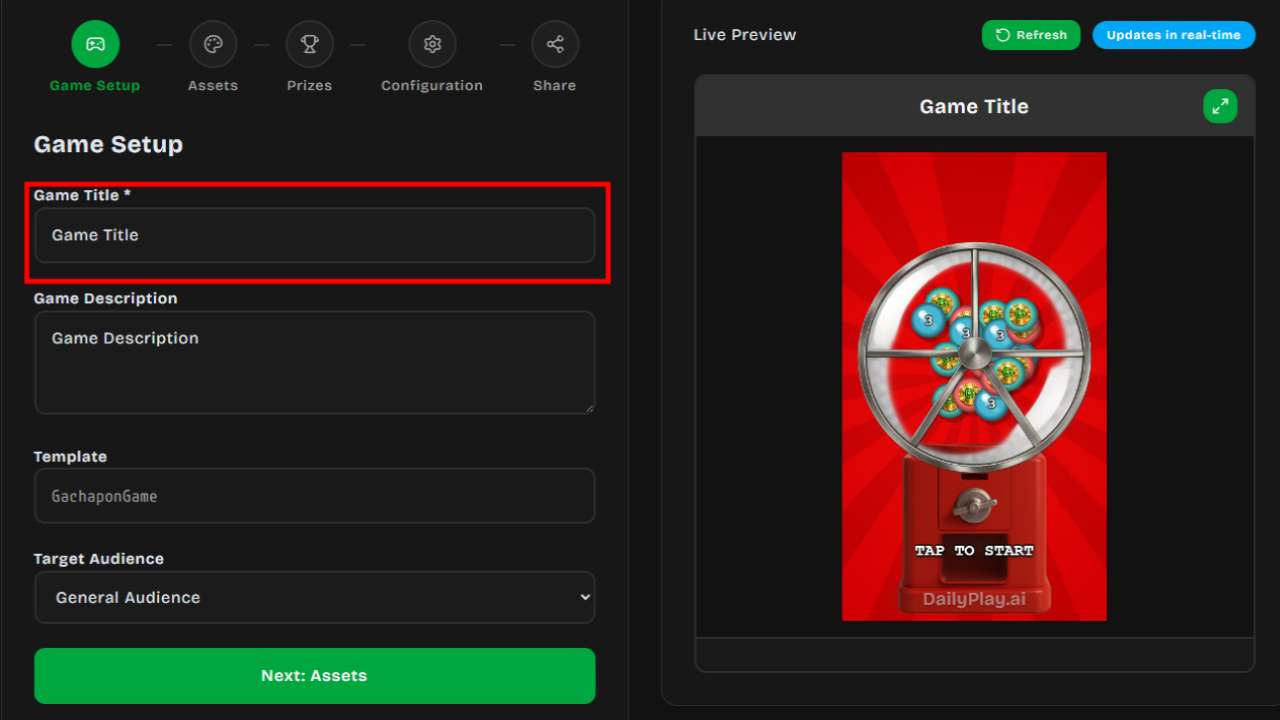
### Game Title
Give your game a clear, descriptive name. This appears:
- In the game's header
- On shared links
- In your game management dashboard
### Game Description
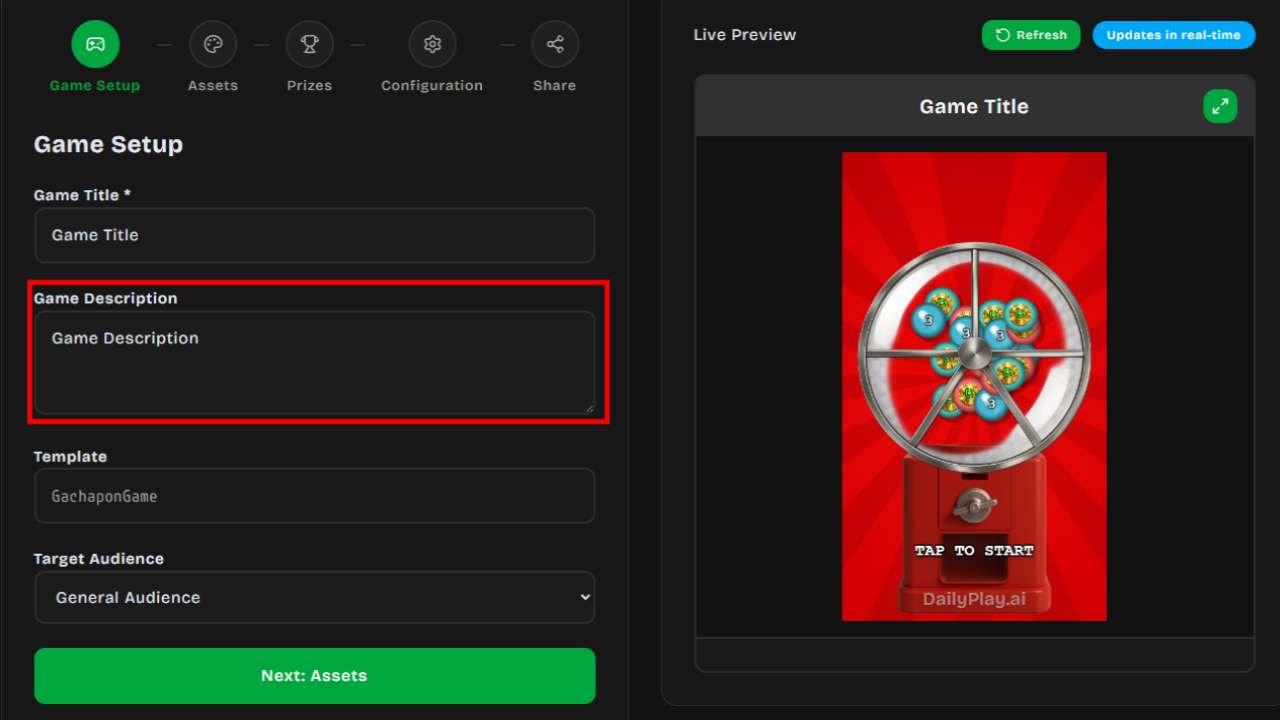
A brief description of your game. Keep it concise — 1-2 sentences that explain what the game is
about.
---
## Visual Assets
Each game template has customizable visual elements. Common assets include:
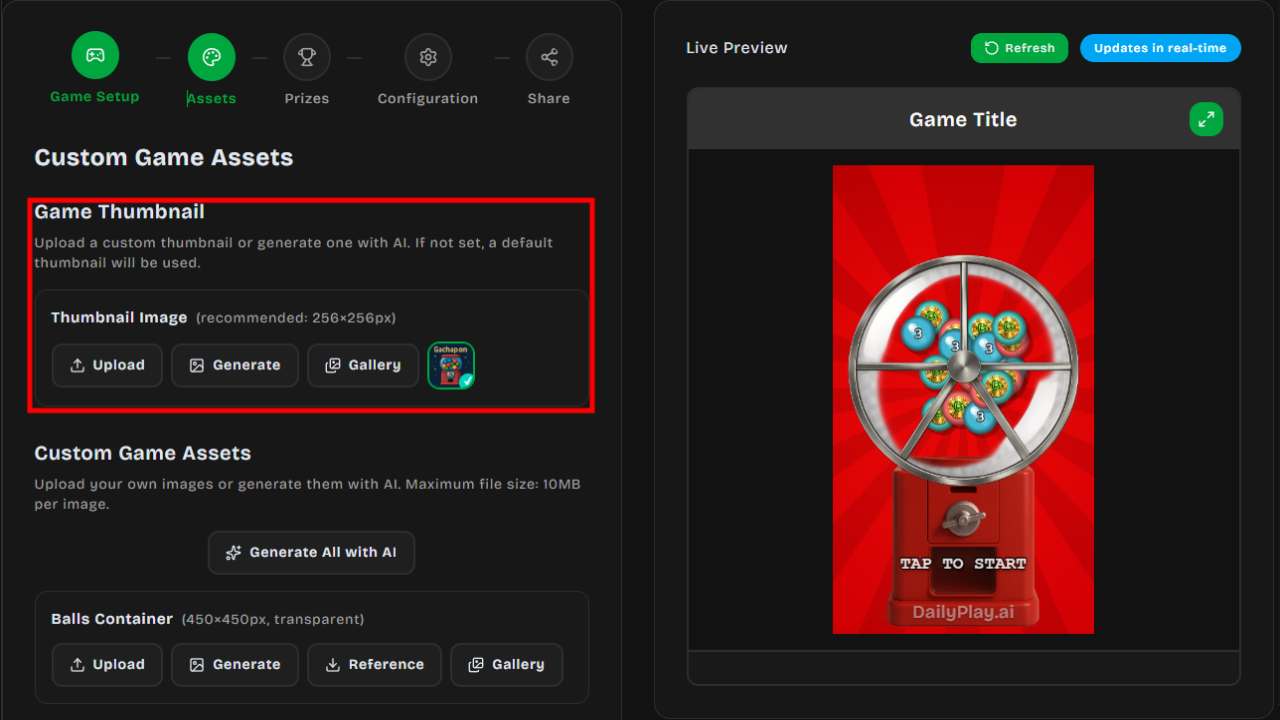
### Thumbnail
The preview image shown when your game is shared. Upload a custom image or use the auto-generated
one.
### Background
The main game background. Options:
- **Upload Image** — Use your own image
- **AI Generate** — Describe what you want and generate an image
:::note
Not all game templates support a background image. The background option will only appear in the editor for templates that include it.
:::
:::tip[Background Tips]
Use images that don't distract from gameplay. Subtle patterns or gradients
work well.
:::
### Game Elements
Depending on the template, you can customize:
- **Characters/Avatars** — The player's character
- **Objects** — Items to collect, obstacles to avoid
- **UI Elements** — Score displays, buttons
- **3D Textures** — For 3D game templates, customize textures on planes, walls, and spheres. Upload your own texture or use AI Generate
### Uploading Images
Supported formats: PNG, JPG, WEBP, GIF
For best results:
- Use high-resolution images (at least 512x512)
- PNG with transparency for overlays
- Keep file sizes under 5MB
### AI Image Generation
DailyPlay includes AI image generation:
1. Enter a text prompt describing your desired image
2. Click **Generate**
3. Wait 30-60 seconds for generation
4. Preview the result
5. Regenerate if needed, or accept and continue
:::note[Generation Tips]
Be specific in your prompts. Include:
- Style (cartoon, realistic, flat design)
- Colors (brand colors)
- Subject (what should be in the image)
- Mood (playful, professional, exciting)
:::
:::tip[Refresh Live Preview]
After uploading an image or generating one with AI, click the **Refresh** button on the Live Preview overlay to see your new image applied in the game.
:::
### Reference Image
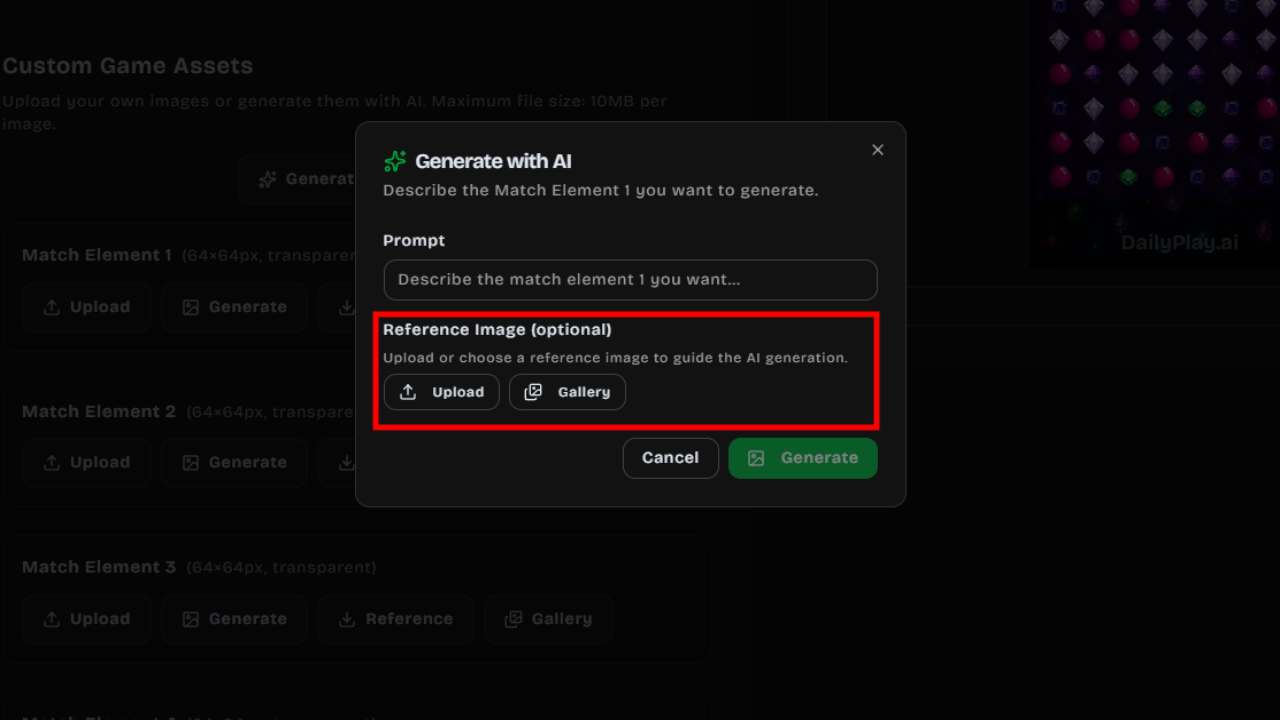
When using AI generation, you can provide a **Reference Image** to guide the style and content of generated assets. This is optional but helps produce more consistent results.
- **Upload** — Select an image from your device (PNG, JPG, or WEBP, max 5MB) to use as a reference
- **Gallery** — Browse and pick from your organization's previously uploaded images
The reference image influences the AI output so generated assets match your brand's look and feel.
---
## Game Configuration
### Difficulty
Control how challenging the game is:
| Level | Description |
| ----------- | ------------------------------- |
| 1 (Easiest) | Very forgiving, great for demos |
| 2-3 | Casual difficulty |
| 4-5 | Moderate challenge |
| 6-7 | Challenging |
| 8+ (Hard) | Expert level |
### Duration
Set how long the game lasts (in seconds). Common settings:
- **30 seconds** — Quick engagement
- **60 seconds** — Standard gameplay
- **90-120 seconds** — Extended sessions
### Primary & Secondary Color
Customize your game's color scheme to match your brand:
- **Primary Color** — Used for buttons, headers, and key interactive elements
- **Secondary Color** — Used for accents, highlights, and supporting UI elements
These colors apply across the game interface, ensuring a consistent branded experience.
### Discoverable
Choose whether your game appears in public searches:
- **On** — Anyone can find and play your game
- **Off** — Only accessible via direct link
---
## Post-Game Configuration
### Call-to-Action (CTA)
After the game ends, show players a CTA screen:
#### Email Capture
Collect player emails with a customizable form:
- **Title** — e.g., "Thanks for playing!"
- **Message** — Explain what they'll receive
- **Consent Checkbox** — For marketing opt-in
#### Custom CTA
Display a message with optional action button:
- Link to your website
- Show a promotional offer
- Direct to social media
:::note
For campaign-level lead forms on streams (email, name, phone, before/after timing, and highscore
name reuse), see [Lead Capture](/streams/lead-capture/).
:::
### Post-Game Redirect URL
Optionally show a link popup after the game ends — useful for sending players to a landing page,
store, or survey:
1. In the game editor, enable **Post-Game URL**
2. Enter the destination URL
3. Optionally set a title, description, and button label
---
## Prize Configuration
Some game templates **require** prizes (Spin the Wheel, Gachapon, Grid Box, Claw Machine, Scratch Card), while others make it **optional**. For optional games, enable the **Enable Prize System** toggle to add prizes.
### Prize Slots
Each game has a minimum and maximum number of prize slots depending on the template:
| Game | Slots |
| ---- | ----- |
| Spin the Wheel | 3–10 segments |
| Gachapon | 3–10 capsules |
| Grid Box | Exactly 9 boxes |
| Claw Machine | 3–10 items |
| Scratch Card | 1–10 cards |
### Prize Slot Fields
For each prize slot, configure:
- **Prize Name** — What the player sees (max 50 characters)
- **Description** — Optional details about the prize (max 200 characters)
- **Prize Image** — Upload an image for the prize (256×256 recommended)
- **Probability** — Chance of winning as a percentage (all slots must total 100%)
- **Min Score** — Minimum score required to win (only available on supported game templates)
### Prize Types
Each slot must have one of the following types:
| Type | Description |
| ---- | ----------- |
| **Item** | A physical or digital item (e.g., "32\" TV", "Free Coffee") |
| **Voucher** | A single static voucher code shown to the winner |
| **Voucher Set** | Pulls from a managed pool of voucher codes — codes are auto-distributed to winners |
| **External Link** | A URL for off-platform redemption |
| **No Prize** | A "Try again" slot (hidden in single-prize mode) |
### Prize Claim QR
Use **Show Prize QR** to control whether winners see a scannable QR code for the claim/voucher
code. The toggle defaults to **on**. Turn it off when you only want the code shown as text (for
example, when players must type the code into another system).
### Voucher Set Integration
To use the **Voucher Set** type:
1. Go to the **Vouchers** page and create a voucher set
2. Upload or generate voucher codes in that set
3. Back in the prize editor, select **Voucher Set** as the type
4. Choose your voucher set from the dropdown — it shows the available code count
5. Codes are automatically distributed to winners one at a time
:::note
If you don't have any voucher sets yet, the editor will show a link to create one.
:::
See [Voucher System](/rewards/vouchers) for more details.
### Reordering and Managing Slots
- Use the **up/down arrows** to reorder prize slots
- Click **Add** to add more slots (up to the template maximum)
- Click **Remove** to delete slots (down to the template minimum)
:::caution
Total probability across all prize slots must equal 100%. A warning will appear if the total is off.
:::
---
## Preview Mode
Always preview your game before publishing:
1. Click **Preview** in the editor
2. Play through the entire game
3. Check:
- All images load correctly
- Game difficulty feels right
- Post-game CTA displays properly
- Mobile layout works
:::caution[Test on Mobile]
Most players will be on mobile devices. Always test on a phone before
publishing.
:::
## Next Steps
- Learn about [Publishing Your Game](/creating-games/publishing)
- Set up [Prizes and Vouchers](/rewards/overview)